Install OSX Tiger on Intel Machines (or USB Drives) Using Only Windows Software

Install OSX Tiger on Intel Machines (or USB Drives) Using Only Windows Software


Many of the guides for installing OSX Tiger are complicated and use linux. You can install OSX using public-domain free windows only tools.

If you wish to install OSX tiger to your intel machine or usb drive, you can follow these few steps. Be careful because you can kill your hard drive if you are not careful.

You will need either a seperate hard drive (seperate partition will not do) or an external hard drive. Whatever extra hard drive you use will be completely replaced by osx and you will lose all information on that drive.

1. Authorized users should obtain the OSX files from Apple. It is illegal to obtain them from torrent sites by searching under the following keywords: "VMWare files for patched Mac OS X Tiger Intel"
2. Unrar these files to the root of your C: drive
3. Download Forensic Acquisition Utilities
4. Unzip these files and copy dd.exe to the root of c: drive as well

Note: the dd.exe program is used to write the image to your spare hard drive or external hard drive. The command is the following:

dd if=c:\tiger-x86-flat.img of=\\.\PhysicalDriveSomething

PhysicalDriveSomething should be replaced with your real physicaldrive (PhysicalDrive1, PhysicalDrive2, etc.). What your hard drives or usb drives are labelled is not always obvious. So I use WMI to figure this out. If you don’t need it, don’t get it. It’s free… and it may prevent you from killing your wrong hard drive.

5. Download WMI Tools from Microsoft
6. Open WMI Browser Object
7. Allow block content and click the OKs until it loads
8. Select Win32_SystemPartitions.PartComponent in the left column
9. In the right column right-click on the drive device id (Disk #0, Partition #0, etc) and select Go to Object
10. The device window will open and click the associations tab
11. Exploring with this tool you should be able to match drive letters (Win32_LogicalDisk.DeviceID="C:") to each physicaldisk reference (Win32_DiskDrive.DeviceID="\\\\.\\PHYSICALDRIVE0")

Click for larger version:

12. Now that you know the physicaldrive label for your extra internal or external drive, you can drop to the root of your c: drive and run the command. Be sure to replace the physicaldrive text with the physical drive you determined above. If you use the wrong one, you will erase your primary hard drive.

dd if=c:\tiger-x86-flat.img of=\\.\PhysicalDrive

13. The command will appear to hang but you will notice your extra harddrive cranking away. It’s going to do this for 15min to hours. Just let it run.
14. Once it is done, reboot and set the osx drive to your boot drive through your bios.
15. If your hardware is compatable, you should boot to OSX.

If you need to debug, I recommend these forums.

This wiki is also excellent:
http://wiki.osx86project.org/wiki/index.php/Main_Page


Posted in Computers and Internet | Leave a comment

Email ettiquette tips: keeping your email cool

Email ettiquette tips: keeping your email cool

E-mail is an amazingly helpful tool but it is also a largely impersonal one. Working in isolation on your notebook without face-to-face contact can lead to a wide range of miscommunications.

In fact, how we communicate often depends on whether we physically interact or do our ‘talking’ through e-mail. People often ‘say’ things through e-mail that they would never say to someone’s face.  Learn some ways to mind your e-mail manners.

This is particularly obvious to anyone who has ever been ‘flamed’ (that is, having received an angry, embarrassing, or offensive e-mail).

Without any facial expressions, voice intonations or any other cues, it is easy to misread an e-mail. Was it intended as straightforward, ironic or humorous? Even a sentence such as ‘you did great work today’ can take on a thousand different meanings depending on who wrote it, and how you feel at the time.

For the writer, who may rarely (if ever) see the intended recipient, there is no social blocker in place to mediate their behavior. Whether angry, upset or simply uncaring, there is nothing in place to stop them from fully expressing themselves.

Even if they had no overt intention to cause offence, what they may assume is innocent, even funny, can come across as rude, patronizing and insulting.

Here’s a few quick tips to help you keep you cool under pressure, whether you feel the need to flame someone or whether you’ve just been flamed yourself.

Before you send

1.  Always think twice

Okay, you’re angry or upset. Write your e-mail. Save it. Read it. Go have a coffee. Read it again. Then ask yourself the big question – is it really worth sending? Chances are it isn’t.

2. Keep it clean

Remember that everyone will interpret things differently. Jokes, pictures and lewd comments can truly offend.

3. Empathise with the reader

Think of the things you don’t like to receive in an e-mail. For example, are people always shouting IMPORTANT things in upper case, using hundreds of abbreviations and emoticons, sending large attachments? If you don’t like receiving certain things, why send them to others?

4.  Check the ‘send to’ list before you send

Believe it or not, everyone doesn’t want to read your e-mail and you just might be sending your scathing thoughts about someone to everyone.

Tip: Draft your e-mail first – leaving who it is intended for in the To: line blank. If you accidentally hit “send” before you actually intended to, a prompt will remind you to input the recipient’s e-mail address. It’s a direct way to make sure your messages don’t go out before you want them to and gives you time to consider who really needs to be on the receiving end of the message.

5. Be polite

Whether at your desk or texting a message from your phone, saying ‘hello’ and ‘thanks’ in the introduction, anywhere throughout, or even waiting until the end of the message can make a huge difference.

6. Resist temptation

Yes, something was said. Yes, maybe you were criticized. Perhaps you were CC’d on an exchange between a colleague and your boss. How you respond next will say everything about you. Remember, once something is said, it can never be taken back.

7. See Point 1.

Posted in Computers and Internet | Leave a comment

10 Alternatives to iTunes for managing your iPod

10 Alternatives to iTunes for managing your iPod


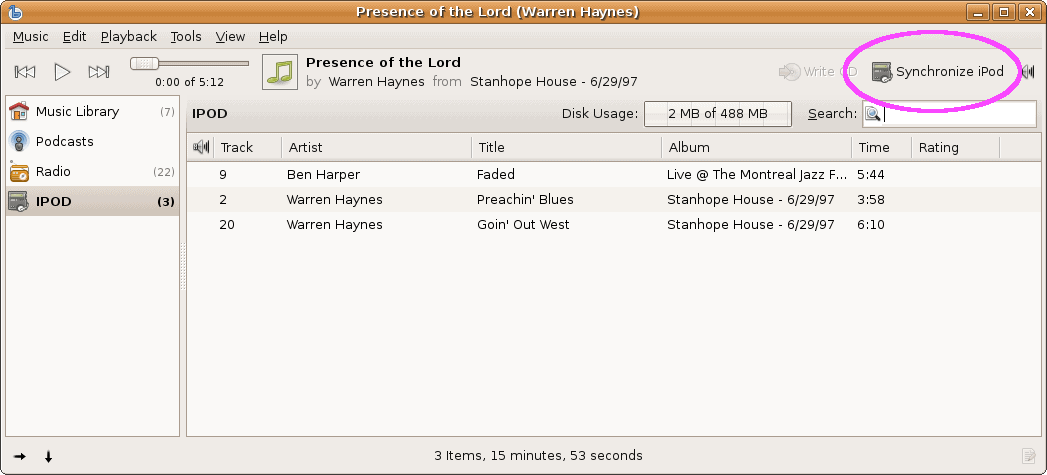
This overview details the features (with screenshots) of 10 different programs other than iTunes to manage your iPod. Tutorials are included for every program, and they’re all either free or Open Source.

If you’ve been wondering why I’ve been writing so many “How to use XYZ to manage your iPod” tutorials lately, now you know why.
 

Name

Supported Platforms

Amarok

Banshee

Floola

gtkpod

MediaMonkey

Rhythmbox

SharePod

Songbird

Winamp

YamiPod


Amarok
Homepage: http://amarok.kde.org/
About: Amarok includes the following features: Album cover detection and downloads, lyrics support, wikipedia integration, contextual information (a quick view on your currently played music, and suggest similar track which you might like), statistics, Last.fm integration, multiple media devices support (Apple iPod, iRiver iFP and T players, Creative Zen and Nomad players, Generic USB players, Generic MTP players). Amarok is available as a pre-compiled binary for many Linux distributions, and its source is available for those of you who prefer compile your own programs.
Tutorials: How to use Amarok to manage your iPod in Ubuntu
How to install Amarok in Ubuntu (and get it to play MP3s)

Screenshots:


configure iPod


iPod contents list


transfer queue


transfer to iPod

back to top


Banshee
Homepage: http://banshee-project.org/Main_Page
About: Banshee includes the following features: Rips music, burn CDs, share your music, displays cover art, tons of plugins, controllable via keyboard shortcuts, smart playlists and the ability to rate your music. Banshee is available as a pre-compiled binary for many Linux distributions, and its source is available for those of you who prefer compile your own programs.
Tutorial: How to use Banshee to manage your iPod in Ubuntu

Screenshots:


main Banshee window


highlight files


sync to iPod


sync in progress

back to top


Floola
Homepage: http://www.floola.com/modules/wiwimod/
About: Floola includes the following features: Cross platform (works on any Windows (98 and above), any Mac and any linux distribution with GTK installed), Portable (put the application on iPod and launch it on any PC), add and extract songs to and from your iPod, integrated with Last.fm, add artwork to your songs easily, lyric support even on older iPods (3G and above), Videos can be added to iPod, Growl support (Mac only),
Tutorials: Floola installation FAQs
Notes: Floola was the only of the 10 iTunes alternatives that I couldn’t personally test. Floola (at this time) requires that iTunes 7.3 has never touched your iPod (works with iTunes 7.2 and lower), and sadly 7.3 is the version of iTunes that’s on all of my computers.

Screencast:

back to top


gtkpod
Homepage: http://www.gtkpod.org/about.html
About: gtkpod is a platform independent Graphical User Interface for Apple’s iPod using GTK2. It supports the first to fifth Generation including the iPod mini, iPod Photo, iPod Shuffle, iPod nano, and iPod Video. gtkpod includes the following features: Read your existing iTunesDB, add MP3, WAV, M4A (non-protected AAC), M4B (audio book), podcasts, and various video files, view, add and modify cover art, sync directories, detect duplicates when adding songs, and much more.
Tutorial: How to use gtkpod to manage your iPod in Ubuntu

Screenshots:


main gtkpod window


adding files with gtkpod

back to top


MediaMonkey
Homepage: http://www.mediamonkey.com
About: MediaMonkey (free version) includes the following features: Party Mode/Auto-DJ, CD Ripper, audio converter, auto-renamer, album-art lookup, reports and statistics, iPod and MP3 Player support.
Tutorial: How to use MediaMonkey to manage your iPod

Screenshots:


MediaMonkey artist view


transferring to iPod


tracks on iPod


safely eject iPod

back to top


Rhythmbox
Homepage: http://www.gnome.org/projects/rhythmbox/
About: Rhythmbox is an integrated music management application, originally inspired by Apple’s iTunes. It is free software, designed to work well under the GNOME Desktop, and based on the powerful GStreamer media framework. Rhythmbox includes the following features: an easy to use music browser, searching and sorting, comprehensive audio format support through GStreamer, Internet Radio support and Playlists.

Tutorial: How to manage your iPod using Rhythmbox in Ubuntu

Screenshots:


Rhythmbox library


iPod library in Rhythmbox

back to top


SharePod
Homepage: http://www.sturm.net.nz/
About: SharePod includes the following features: loads directly on to your iPod – no software to install, automatically finds an iPod attached to a PC, read/write track properties, remove tracks from an iPod, add/remove playlists on an iPod, copy tracks from an iPod to PC with customized output filename formats, integrated iPod backup & restore – tell SharePodLib where to store backups and how many to store, eject iPod from PC. Requires the Microsoft .NET 2.0 Framework.
Tutorial: How to use SharePod to copy files to and from your iPod in Windows

Screenshots:


main SharePod window


tracks loaded to iPod

back to top


Songbird
Homepage: http://www.songbirdnest.com/
About: Songbird is a desktop Web player, a digital jukebox and Web browser mash-up. Like Winamp, it supports extensions and skins feathers. Like Firefox, it is built from Mozilla, cross-platform and open source. Songbird includes the following features: Plays MP3/AAC/OGG/FLAC/WMA and more, Multi-Language Support, Integrated Web Search, Smart Mixes, Play In Place (Songbird plays MP3s without leaving the page) and Add-ons (plugins).
Tutorials: How to use Songbird to manage your iPod
An Introduction to Songbird

Screenshots:


default iPod support


Songbird iPod view

back to top


Winamp
Homepage: http://www.winamp.com
About: Winamp includes the following features: frankly there are too many to list, so visit their features page. It does pretty much anything you can think of. But I don’t think Winamp supports cover-art – unless there’s a plugin for it, which there probably is. Winamp has been my default media player in Windows since 1997 (it finally replaced Winplay3). As a completely unrelated but ‘fun’ side note, the very first version of ICY for Linux (now known as SHOUTcast, the streaming audio software) was compiled on my computer because Justin didn’t have a Linux machine at the time.
Tutorial: How to use Winamp to manage your iPod

Screenshots:


portable MP3 players in Winamp


iPod view


send files to iPod in Winamp


back to top


YamiPod
Homepage: http://www.yamipod.com/main/modules/home/
About: YamiPod is a freeware application to efficiently manage your iPod under Mac OS X, Windows and Linux. It can be run directly from your iPod and needs no installation. YamiPod includes the following features: works with iTunes 7.3 (if you use the beta version of YamiPod), it’s stand alone program – no installation is required, your iPod is automatically recognized, mp3 and AAC files can be copied to/from iPod, playlist support, auto-download new versions, built in music player, News RSS and podcasts to iPod upload, multiple iPods support
and Last.fm support.
Tutorial: How to use YamiPod to update your iPod in OS X or Windows

Screenshots:


main YamiPod window


YamiPod with more tracks

Posted in Computers and Internet | Leave a comment

25 Alternative Uses for Olive Oil.

25 Alternative Uses for Olive Oil.

Nutritionists will continue to tout olive oil for its high content of healthful, monounsaturated fats, like oleic acid, and polyphenols. The fruit oil practically propelled the entire Western world in antiquity, and is mentioned in nearly every sacred text this side of the Tigris and Euphrates. As a cooking fat, it’s high up on the heart-smart  list…which works out, ‘cause it tastes darn good. 

 (As tip, Consumer Reports has rated Goya brand extra virgin olive oil [from Spain] as the best general purpose olive oil, and as their best buy. I whole-healthy-heartedly concur.)

Olive oil also has plenty of uses around your home, outside of the sauté pan. There’s no need to waste your expensive Greek or Spanish Extra Virgin for these tasks, just grab a bottle of inexpensive, domestic olive oil for around-the-house use. You can cut down on excess oil by investing in a refillable spray can, such as the Misto.

1. Shave. Olive oil can provide a safe and natural lubricant for a close shave. Rub in an extra teaspoon after washing your body or face once finished.
2. Wood Furniture Polish. Wipe with a teaspoon of olive oil and a soft rag. Add a bit of vinegar of citrus juice to bulk up the cleaning power, and add a fresh scent.
3. Fingernails. Use a bit of olive oil to moisturize cuticles, or mix oil and water and soak your hands before a manicure.
4. Lubricate Measuring Cups and Spoons. Rub or spray olive oil on your measuring tools for easy clean-up of sticky substances like honey, grain mustards, and sugar syrups,
5. Control hair frizz. Comb a bit of olive oil through dry hair to tame the frizz and flyaways on humid days or in the winter.
6. Free a stuck zipper. Use a cotton swab to apply olive oil to the teeth of a zipper, then gently ease the tab down.

7. Care for your kitty. Add a teaspoon of olive oil to your cat’s food to help prevent hairballs, and provide a shiny coat.
8.  DIY Lip balm. Mix olive oil and melted beeswax in a 1:1 ratio, with an essential oil for fragrance, and say goodbye to dry and chapped lips.
9. Stop Snoring. Take a sip of olive oil before heading to bed. It might lubricate your throat muscles, and stop yourself, or your partner, from snoring.
10. Shine stainless steel and brass. Rub a bit of olive oil on a clean rag to prevent streaks, corrosion, and tarnish.

11. Exfoliate your face and hands. Rub your skin with olive oil, then scrub with sugar or coarse salt, and rinse.
12. As you bathe. Add a few tablespoons of olive oil to your running bath water. You’ll be amazed when you towel off.
13. Remove makeup. Dab a bit under your eyes, on your cheeks and forehead, then wipe with a damp cloth.
14. Cure an earache. Very carefully, use a cotton swab to apply olive oil to the outside ear cavity to help with earaches and excess wax.
15. Remove paint from your skin. Rub on olive oil onto messy hand and arms (or faces) and allow the oil to soak into the skin for five minutes, then rinse with soap and water.
16. Treat lice. Apply olive oil to your youngster’s hair, and leave on for at least 40 minutes. Shampoo twice, then apply a preventative.
17. Stop a throat tickle. Take a sip of olive oil to stop the itchy flicker that is making you cough.
18. Fix a squeaky door. Use a rag or cotton swab to apply olive oil to the top of a problematic hinge in your home or automobile. 

19. Shoe polish. Rub down your shoes with just a spray of olive oil to maintain their shine.
20. Personal Lubricant. It works…
21. Soften your skin. Rub olive oil daily on notoriously dry areas, such as your feet or elbows, especially after a shower, shaving, or waxing.
22. Easy clean up of garden tools. Spritz some olive oil on your tools to cut down on dirt buildup. Read more here!
23. Condition leather. Rub olive oil into worn leather, such as a baseball glove, and let set for 30 minutes, then wipe away any excess.
24. As a hair tonic. Comb some olive oil through your hair for the vintage look of pomade without the build-up, or add a bit to wet hair for grungy, but clean, look.
25. Cure diaper rash. Gently wipe on olive oil to your baby’s bottom to help with the irritation of diaper rash.


Posted in Health and wellness | Leave a comment

Ice Cream in a Bag

Here is a fun idea for a hot summer day.

Note: As in all recipes, results can vary depending on humidity, conditions, etc. Please try any recipe out before attempting in a group setting.

This project is rated VERY EASY to do.

What You Need

  • 1 tablespoon Sugar
  • 1/2 cup Milk or half & half
  • 1/4 teaspoon Vanilla
  • 6 tablespoons Rock salt
  • 1 pint-size Ziploc plastic bag
  • 1 gallon-size Ziploc plastic bag
  • Ice cubes

How To Make It

  1. Fill the large bag half full of ice, and add the rock salt. Seal the bag.
  2. Put milk, vanilla, and sugar into the small bag, and seal it.
  3. Place the small bag inside the large one and seal again carefully.
  4. Shake until mixture is ice cream, about 5 minutes.
  5. Wipe off top of small bag, then open carefully and enjoy!

Tips

  • I always have sprinkles and nuts to top it off, and sometimes fruit.
  • To make a larger amount I would try doubling the recipe. Anything larger might be too big for kids to pick-up, because the ice itself is quite heavy.


  • I just tried the project. I didn’t have the exact ingredients, so I improvised.

    • 1/4 tsp butternut flavored imitation vanilla
    • 1 tbs. sugar
    • 1/2 cup 1% milk
    • Ziploc sandwich bag
    • 12 water softener pellets
    • 1 tray of ice (Mine breaks it into small pieces and it is really only about half tray)
    • Large plastic bag (I didn’t have a ziploc.)

    I put the ice cream ingredients in the small bag and then put it, salt and ice in the big bag. I held the bag shut and sort of stirred it around on the floor for about 5 minutes. Although the salt pellets hardly dissolved, I got ice cream. It was not as smooth as ice cream, probably because of the low-fat milk — it was a little like sherbet. I think if I had more ice in the bag I could have shaken it better. I’d recommend wearing gloves. It is incredible that it is ready in 5 minutes (not counting assembling the ingredients.)

    Next, I changed the recipe. A tablespoon of cocoa, a tablespoon of sugar, and a cup of milk. I really wanted to use carob but we didn’t have any. It was a tad too chocolate, but good! My daughter has milk allergies, so I suggested she try this with fruit juice. She used straight pineapple juice and got terrific fruit sorbed.

See other Ice Cream Recipes:

Coffee Can Ice Cream

Ice Cream in a Can or Kick the Can

Rock ‘n Roll Ice Cream

Posted in Cooking | Leave a comment

Build your own Server

Introduction

After showing that one of the known pitfalls of Linux isn’t as bad as most expected, it’s about time to get things into gear and show one of the strengths of Linux. It’s a known fact that Linux (or any other flavour of ‘Nix) is a great OS to run on that low power, the-day-before-yesterday’s-generation hardware. That’s because the strength of Linux lies in its Command Line Interface (CLI). While scary to those who are used to point and click, CLI offers a no-nonsense, straight to the point and low-overhead powerhouse.
Many accustomed to graphical interfaces find the CLI old and obsolete. But they just don’t grasp the strength of the interface. Since most things in Linux are done through the manipulation of (small) files, there often is no need for some eye candy. With a relative small number of commands you can totally change the functioning of a Linux system. CLI isn’t hard to learn and Linux offers a great tool for learning it, the “man” pages.
But enough of the chatting, Brett asked me to write a guide on how to install a home file server, with a GUI (sigh). In addition to that, he wanted it to run headless, thus requiring a remote administration. Also, a web-based P2P solution was offered to run on the box, so that you can shut down your power hungry workstation, and leave the downloading for the economic box. And to finish things up, I’ll briefly touch the area of scripting. Scripting is the edge that Linux has to offer over Windows – Mac users will know of it a bit if you are familiar with Automator. Most tasks can be automated through scripts – a (lesser) known saying in the Linux world goes: “If you need to do something more than 3 times, you should write a script for it."
But enough of the chatting, lets get this party started…


Scared of command lines and Linux? Don’t be. We’ll take you through step by step to
build one of the most useful boxes you could ever get your hands on – from spare parts.

Hardware

As already touched in the introduction, Linux needs next to no hardware to run on. I know plenty of people who run a Linux gateway on a old 486. That is an impressive clock speed of 16MHz! Unfortunately we aren’t building a gateway right now. Given the requirements of this article, we need something a lot more beefy. Certainly things like an X- and web-server require a fair bit more power. Certainly the X server.
That’s why I chose Xubuntu. Ubuntu is considered as one of the most newbiefriendly distributions out there, but it uses the heavier Gnome window managers, while Xubuntu uses XFCE. Minimum requirements for Gnome are a 500MHz CPU, opposed to the 133MHz needed for XFCE. However, since our box will be multi role, the minimum specification of 133MHz might be a little low. Don’t get me wrong, all will work, but not as smoothly. Anything 750MHz or up will do just fine.
RAM wise, Xubuntu once again is the limiting factor. The install requires 192MB to complete. Afterwards, the system isn’t as RAM hungry, so 192MB should be plenty. In the area of disk space, we are building a file server so the more the better. The OS doesn’t require a lot, about 2.5GB. Disk space is considered to be cheap, so nothing problematic on this front either.
Basically, anything halfway decent from two years ago will do. Maybe you could use that hardware you had to throw out to run Vista? In case you have some lesser hardware lying around, don’t fear. By letting go of the GUI you can lower the requirements quite a bit. Also, all Linux flavours are different, yet so similar. To get the requirements down you can just use the “Ubuntu Server” install. Then you won’t get the GUI, but none the less all will function. If you want even more control, try another distribution, like Debian or Gentoo if you are feeling lucky.
Personally, I’ve ‘assembled’ a virtual PC, thanks to the guys over at VirtualBox. The system has 256MB of RAM and 10GB of disk space at its disposal. For those of you working on a real machine, here’s a tip – the first thing I do when I build a server is walk around in the BIOS. I then disable all unneeded things that I discover on my journey.
If it isn’t needed, turn it off. That way it can’t break.

Xubuntu

Before we can start to install something, we first need an installation medium. The easiest way of installing a system is through the use of a bootable CD. So, let’s get ourselves some ISO images, shall we?
Head on over to the guys at Xubuntu and download a Fiesty Fawn (7.04) Desktop CD from one of the mirrors. If you have some bandwith to spare, be kind – use the torrent download, and share the love. The file isn’t small despite the meager resources of the system needed to run it, so anything helps.
After you have downloaded the ISO file, burn the image to a CD and boot from it. Wait for a moment or two, and you’ll be greeted with the XFCE interface. Don’t you love Live CDs? The disc itself is a fully working OS, so feel free to play around a bit. Of course, there will be a better time to play soon enough, so you don’t need to dally just yet.
Once you’re ready, it’s time to head on to the installation.

Installing Xubuntu is actually quite easy, just a 7 step process. However, I’ll help you through the install anyway. Let’s start by double-clicking the nice “Install” icon on the desktop. Just in case you didn’t know, that’s what it’s for. First, we select our language. Conveniently, it’s already at English. So let’s move on to the next screen…

Next, we set our localisation. Either click on the map, or select it from the list. Feel free to choose something close if your city isn’t on the map. And on to the next screen, which asks us about our keyboard layout. The intelligent system knows from the localisation what keyboard layout is normally used. But, since Linux is about choice, you can choose another one if required. Let’s not stand still too long and move on to the tough questions…

Disk partitioning… if you’re building a system from the command line, this can be tricky. But don’t worry, the Xubuntu installer handles this nicely. I used an empty hard disk and let the installer handle all the partitioning. if there already is a partitioning table on the disk, you’ll have an extra option. But since we won’t be dual booting or anyting, just use the entire disk and proceed to the next screen. Here we can migrate documents and settings from the disk, but since it’s empty, there’s nothing to migrate…

Now, lets get personal. The information you have to input in this screen is actually quite important – especially the “log in name” which serves as your username, your password (try using a strong password), and the name of the computer (hostname). Once all are filled in correctly (it may be wise to write these down for a little while), proceed to the final step, where it gives a summary. Re-read your choices and brace yourself. After clicking on the “Install” button the actual install starts.

Now, sit back and relax… Everything is automated. It takes some time to install a system, so go ahead, grab a cup of tea. Or even better, scout around. You are in a fully functional environment remember? If you are a first time Linux user this is the ideal moment to check things out. When the installation completes, you’ll get this fancy box asking you whether you want to stay inside the LiveCD, or rather boot to your own installation. So let’s restart now and start updating and installing.


Give your system the time to reboot (make sure you boot from the harddisk, not the CD). After your system has booted, you’ll be greeted by GDM, the login manager Ubuntu uses. Input your username and password and you’ll once again see the already familiar interface.

Now, let’s introduce ‘Synaptic’, the Ubuntu package manager. For those who haven’t got a clue what a package manager is, it’s really easy. A package is a piece of software, and a package manager installs, removes and updates those packages. But it does more than that – it also installs dependencies when required. A dependency occurs when a package is to be installed, but it requires a second package to function.
Now that you know what packages and their dependencies are, stop worrying about it. Synaptic solves all of our problems with no thought required. So, using the GUI, open “Synaptic package manager” located under “Applications” -> “System”. You will be asked to input your password again. This is because you’ll be messing around with critical things on your system. Call it a sort of protection – like Windows Vista UAC, only about one-millionth as annoying and ten times as effective.

First, let’s clean up some unwanted stuff and create some more free space for all our data. Click search and search for OpenOffice. While this is a great desktop utility, it isn’t required on our server. Look for “openoffice.org-common”, right click on it, and select mark for complete removal.

You’ll see that removing the common package implies that all the packages depending on it will be removed too. Nice feature isn’t it? Of course, not all OpenOffice packages are removed unless you select them (click on the header of the first column to sort on installed packages). Also, remove all “abiword”, “gaim”, “gimp” and “thunderbird” packages. Beware though, if you try to uninstall a package that gives “xubuntu-desktop” as a dependency, do NOT go through with it. The Ubuntu developers listed a couple of packages as required. If you remove them, you will remove your entire GUI. If you are satisfied, click “Apply”

Now that the unwanted packages are removed, let’s do some updates. See the button “Mark all upgrades”? This will search for all packages which should be updated, and does it. So click “Mark” to select them, and “Apply” again to update. You’ll see Synaptic doing its job. When it’s done, just exit Synaptic just like you’d do with any Windows application.
Now, only one final thing needs to be done. Since our server will be tucked away somewhere, possibly headless, a screen saver only sucks up resources. Therefore, we will disable it. The screen saver settings are located under “Applications” -> “Settings” -> “Screen saver Settings”. Completely disable the screen saver.
See, Linux isn’t hard to learn! Well, Ubuntu surely isn’t…

File Sharing (Samba & proFTPd)

The goal of this guide was setting up a file server. So after the OS has been installed, it is time to get that part going. Unfortunately, no OS is all that keen on file sharing natively out of the box, and Linux is no different. That’s not because it can’t – more just because the goal of Linux is to have what you want, and some people don’t need file sharing. So, it’s a separate package.
One of the best know packages in Linux is Samba. Samba is, among other things, a server and client that allows file sharing among workstations, regardless of their OS. Think of it as something along the lines of “Windows Filesharing”, only much more versatile. If you get into the depths that Samba has to offer, you’ll see that the sharing of files is just the start of what it has to offer. But enough chit-chat, lets get this party started.
First things first, we have to get Samba, or at least the rest of it. So fire up Synaptic, search for Samba and mark it for installation. You’ll see that a lot of Samba is included in the base Xubuntu install and that we only need the Samba package (server).


The install will progress quite fast and you’ll have samba installed in no-time. We’ll configure Samba in a terminal. So open one up, “Applications” -> “Accesories” -> “Terminal”.

Welcome to the wonderfull world of CLI. Don’t fear the dark terminal, instead you should embrace it. It wields more power then you can imagine. But before we start manipulating files, I’d like to explain the directory structure for a moment. Linux has a well defined tree structure, with the userdata residing under /home, the config files under /etc, temporary files under /tmp and so on. Since most config files (all global) are under /etc, that is the main workfield now. Also, Linux is known for their great user rights system. An unpriviledged user cannot edit the config files. That’s why we have to become root, the super user.
Because of the (in Linux terms) weird way of handling rights in Ubuntu, we make use of the command sudo su to become root. Just enter your user password if required. Then, we change our working directory to those of Samba, by typing cd /etc/samba which simply means Change Directory to /etc/samba. Easy isn’t it? Now we will edit the main config file of the samba server, named “smb.conf”. For this, I use nano, a great and easy terminal file editor. Just type nano smb.conf and you are ready to start editing. If you would like something more graphical, you could always install “gedit” (through Synaptic) and replace nano with gedit.
Replace all the contents of the file with the following. Make sure you replace "Name" and "Server Name" with the correct data from your XUbuntu installation!

[global]

panic action = /usr/share/samba/panic-action %d

workgroup = "Name"

netbios name = "Server name"

invalid users = root

security = user

wins support = no

log file = /var/log/samba.log

log level = 3

max log size = 1000

syslog = 1

encrypt passwords = true

passdb backend = smbpasswd

socket options = TCP_NODELAY

dns proxy = no

passwd program = /usr/bin/passwd %u

passwd chat =*Enter\snew\sUNIX\spassword:* %n\n *Retype\snew\sUNIX\spassword:* %n\n .

obey pam restrictions = yes

pam password change = no

null passwords = no

#Share Definitions

[homes]

comment = Home Directories

browseable = yes

writable = yes

security mask = 0700

create mask = 0700

Save and exit in nano is done through the keyconbination Ctrl + X , y and enter.
Now, we restart the samba server by typing /etc/init.d/samba restart. You’ll see the server stopping and restarting. Now we are sure that new config is loaded. One minor difficulty in Samba is that it uses a separate password back-end. This is great for security, but in this case adds an other step. We have to add all the users that use samba to that back-end. Don’t worry, it’s an easy step. Type smbpasswd -a Username and enter the password for that user.

Now, lets check if our hard work did it’s job. From another workstation (a Windows XP one, for instance), open
\\(whatever the IP of the server is)\homes
You should be prompted for the username and password, which you just freshly created moments ago. Enter them in, and you’ll be greeted with the contents of your home directory.

FTP Server

Next, we will be adding an FTP server to our build. This is completely optional and therefore not required if you don’t need it. It just adds extra functionality to our server. Many people don’t see a need for FTP, but there are always the odd times where you wish you had the ability to zip a file over to yourself, or to pull something off of your home computer.
To install this service, I’ll only use CLI just to show how easy it is. This is also the way the non-GUI users will install services to their system. Once you’ve built a few of these, you too may wish to skimp on the extra space and resources that any GUI takes up, at least on your server. So, let’s fire up that terminal once again.
Once in the terminal, we have to become root user again, so sudo su. Now it’s time for us to install the ftp server. I have chosen Proftpd because of its reliability, security and ease of use. Installing things in the CLI really is as easy as doing it through the GUI. Just type apt-get install proftpd. Apt-get is the command line equivalent of Synaptic – that’s all the GUI is really doing!

You’ll get lots of information, which you should read, and then you’ll be asked if you want to continue. We do, so just hit enter. After a few moments the installer will ask us whether we want the server to run as a standalone server, or through the inetd service. Choose standalone, because of security and manageability reasons.

As with Samba, we need to configure the server. Fire up nano again by issuing nano /etc/proftpd/proftpd.conf. Then just replace the contents with the following:

ServerName "FTP Server"

Serverident on "FTP"

ServerType standalone

DeferWelcome off

TimesGMT off

MultilineRFC2228 on

ShowSymlinks on

TimeoutNoTransfer 600

TimeoutStalled 600

TimeoutIdle 1200

DisplayLogin welcome.msg

DisplayFirstChdir .message

ListOptions "-l"

DenyFilter \*.*/

AllowForeignAddress on

AllowRetrieveRestart on

Port 21

SocketBindTight on

PassivePorts 11000 20000

MaxInstances 30

User nobody

Group nogroup

Umask 022 022

AllowOverwrite on

AllowForeignAddress on

AllowRetrieveRestart on

AllowStoreRestart on

UseReverseDNS off

IdentLookups off

DefaultRoot ~

ExtendedLog /var/log/proftpd.all ALL

DelayEngine off

User ftp

Group nogroup

UserAlias anonymous ftp

DirFakeUser on ftp

DirFakeGroup on ftp

RequireValidShell off

MaxClients 10

DisplayLogin welcome.msg

DisplayFirstChdir .message

AccessGrantMsg "Anonymous access granted for user %u connecting."

MaxClientsPerHost 1

#DenyAll

TransferRate RETR 50

DenyAll

Once you’re done, restart the server by typing /etc/init.d/proftpd restart. Proftpd uses the standard password backend, so no extra configuration is required.

Remote administration (x11VNC && SSH)

Now, we have ourselves a fileserver – but it isn’t practical to keep a keyboard, mouse and monitor connected to it. To solve this problem, we have 2 main options. For the CLI people we have SSH, which offers us a secure way of connecting to the server. The SSH server is a base for me on every Linux server, and can be useful under a variety of circumstances.
For the GUI people, we have VNC. VNC is a well know graphical protocol which works on Windows too, although with subtle differences compared to the Linux counterpart. Don’t worry though, both are compatible. VNC works by sending a picture of your screen to the client computer, so it’s a lot slower than SSH. Of course, it is also a lot more like "being there" if you’re CLI-challenged (or just lazy — Ed.).
The best part is, you can have the best of both worlds. Having both a SSH and a VNC server installed is no problem at all, and the combination allows you a tremendous flexibility for a secure connection. And let’s be honest…isn’t that why you’re building this thing?

So let’s not waste any more time – open up Synaptic and get both services installed. First, the SSH server. It’s configured quite securely from the start, so no extra steps are needed. All you need to do is select the “openssh-server” package before moving on to the VNC.
Because of the differences between the Linux and the Windows VNC protocol, we will select “x11vnc”. X11vnc is as close as it gets, without being very complex, to the Windows counterpart. X11vnc, as most vnc servers, use a separate password back-end then the standard Linux one – this is for security reasons. Once again, we have to add our users to the back-end. So type in a terminal vncpasswd ~/.vnc/passwd and hit enter, then verify your password.
Also, the port on which the server runs has to be entered. A simple echo 5900 > ~/.vnc/port will handle that. Finally, we create a custom command to call when we log in (which will be automated too, hold your horses). Issue a sudo nano /usr/local/bin/sharex11vnc and paste:

#!/bin/sh

x11vnc -nap -bg -many -rfbauth ~/.vnc/passwd -desktop "VNC ${USER}@${HOSTNAME}" \

|grep -Eo "[0-9]{4}">~/.vnc/port

Don’t forget to save and exit.

In case you were wondering, you just made your first script! But before we can use it, it needs to get the correct user rights. That’s easily fixed with a simple sudo chmod 755 /usr/local/bin/sharex11vnc. What the command “chmod” can do is beyond the scope of this guide, but issuing man chmod in a terminal will give a lot of information (And a cure for insomnia — Ed.). Now we need to autostart our freshly made script. The tool we use for that is located under “Applications” -> “Settings” -> “Autostarted Applications”. Click “Add” and fill in the fields Name and Command with “sharex11vnc”.

Now, let’s make our account autologon (this is required by VNC). So “Applications” -> “Settings” -> “Login Window” is the place to be. Under the tab “Security” you can find the checkbox “Enable Automatic Logon”. Once you have checked it you will also need to select a user which will log on. Logic says this is our main (and only, at the moment) user.
There! VNC and SSH services are set up. Now you can remotely control your server both through the GUI and the CLI. It’s time to tuck the box away somewhere, and forget it’s there. A word of caution is due, though – I noted that VNC is different on Windows than it is on Linux. In a Windows VNC server, you connect to a port of the machine; on Linux ,you connect to a screen on a machine. This is noticed when establishing a connection. Instead of connecting to “machine:port”, you connect to “machine:screen”.
As an additional security measure, I’ll show you how to connect your VNC through an SSH tunnel. I’ll use putty as the ssh client and use the UltraVNC client for the GUI.

We start by making the SSH tunnel. Fire up putty, type in the IP of the server. Don’t press “Open” just yet, we have to define the tunnel too. Under “Connection” -> “SSH” you’ll find a entry “Tunnel”. The source port is “5900” and the destination is “localhost:5900” (localhost refers to the remote machine).

Click “Add”, and then “Open” to create the connection. If all goes well you’ll be asked if you trust the key of the remote server, which we do. Then you can log in with your username and password (as used on the server).

Now, fire up the UltraVNC client (viewer) and connect to “localhost:0”. This refers to the local machine on the default port and screen 0. Because we made a tunnel from the local machine to the server, connecting to that port will end up on the server. After clicking connect you’ll be asked for a password. This is the password we set for the VNC server.

And there you go, a secure VNC connection to your server has been established.

P2P (Torrentflux via Apache, MySQL, PHP)

Now, on to the web-based torrenting solution. This is the heaviest requirement that our server has, because Torrentflux, one of the best web-based solutions, has quite a lot of dependencies.
To get it up and running we need a fully functional LAMP server (Linux Apache MySQL PHP). It’s certainly not like this will be hard to setup, it just requires some steps. Also, we’ll be installing Torrentflux from latest release we get from the torrentflux website, just to illustrate this way of installing software (rather than the package manager). Don’t worry, it’s not hard either.
If you really don’t want a web-based torrenting solution or to install a LAMP server, you can just use an alternative torrent solution from the Synaptic package manager, and VNC into the server to control it. But once again, what fun would that be? After all, you’ve come this far…
Yeah, that’s what I thought. Now, let’s get to work.

Before we install torrentflux, we need to first handle the dependencies. So fire up Synaptic and select “mysql-server-5.0” and “phpmyadmin”. Again, due to the handling of dependencies, apache2 will be installed alongside (apache is a dependency of phpmyadmin). After the install has finished, fire up “Firefox”, which can be found in the toolbar or under “Applications” -> “Network” -> “Firefox Web Browser”. Yes, some things still came pre-installed.

Now we browse to “localhost”. You’ll be greeted by a plain directory listing showing 2 directories. If you take a look in the “apache2-default” directory, you’ll be greeted by a big “It works!”. It’s an easy and to-the-point way that the Apache development team left you to test the web server. If you get the message, it will just work.

Now, on to MySQL. Go back a step and head for the “phpmyadmin” directory. Upon entering you’ll be greeted by a nice login screen. Just log in with username “root” and a blank password. Note, this is NOT the root password of your system. It’s the root password of the database. Upon logging in you’ll see some fancy data about your database.

First, we will set a root password. This should be required, as it will make your whole system considerably safer. Therefor, select any database from the “Database” drop down box. I took “Information_schema” but any will do. Now, click on “SQL” on the top of the page. The query you have to enter is: SET PASSWORD FOR root@localhost=PASSWORD(‘MYNEWPASSWORD’);, of course changing “MYNEWPASSWORD” for something safer. Confirm by clicking “Go."

So, now that that’s done, browse to “http://www.torrentflux.com” and download the latest Linux version to your home directory. The software comes in a .tar.gz package. This is a gzipped archive – think of it as something along the lines of a Windows .rar file. At the moment, the latest version is “torrentflux_2.3.tar.gz”. Now, to extract the archive (and also configure Torrentflux), fire up a terminal once again. We’ll start by extracting the archive. Issue a tar xvzf torrentflux_2.3.tar.gz to extract the archive. The syntax is quite straightforward. Tar, the command to be run, and you want to eXtract a gZipped File Verbosely, named torrentflux_2.3.tar.gz. See? CLI is easy.

Now, to get torrentflux running we need to configure a bit. First we need to create a torrentflux database user. This is done easily through CLI. A simple mysqladmin –u root –p create torrentflux will do that for us. Just enter your MySQL root password and the new user will be created. Now, we have to create the database itself. Don’t worry, the guys over at Torrentflux have made a sql query which handles it all. So, change to the sql directory by doing cd sql, and issue mysql –u root –p torrentflux < mysql_torrentflux.sql. When asked for a password, enter the MySQL root password once again. Now, for the final configuration, change to the html directory, by doing a “cd ../html” and edit the config.php file (I once again use nano, you could use gedit if preferred), so nano config.php. In the config.php file, search for the line starting with $cfg[“db_pass”] and input the MySQL root password.

There, most of the configuration is done. Now we need to copy all the data into the correct place. First we create a new directory in the webserver by doing a sudo mkdir /var/www/tf. When asked for a password, this time you’ll input your system password. Now we copy over all the data, by issuing sudo cp –r * /var/www/tf. This concludes the installation of Torrentflux!
However, it might be handy to have one central shared directory for all users. The logical place for this directory is directly under /home. Therefore, we type cd /home to change to the root of the home directories, and then we create a directory named "shared" by typing sudo mkdir shared. To make it shared, we set the user rights to 777 (user, group and world read, write and executable) by entering sudo chmod 777 shared. Inside the shared directory we will create a “torrent” directory where we will put our torrent files into. So issue cd shared, mkdir torrent and chown 777 torrent. Open up Firefox once again and head over to localhost. You’ll see an extra directory named “tf”.

Enter that directory and log in with username “root” and your MySQL root password. Change the path variable to “/home/shared/torrent” (or /home/Username if you chose not to create a shared directory) and confirm at the bottom of the page. You can reach torrentflux now from any workstation on your LAN, just by browsing to “(ip of the server)/tf” and logging in with the aforementioned credentials.
How to use Torrentflux is beyond the scope of this guide, but I doubt you’ll need the help. It’s quite straightforward and easy.

An introduction to scripting

The ultimate edge that Linux has to offer over Windows is the ability to do extensive scripting. Nearly all tasks on a Linux station can be done through the use of scripts. There are many scripting languages supported out of the box or with minimal installation on a Linux stations, like PHP, perl,… But a lot of people are surprised that even the (standard) Linux shell, BASH, offers extensive scripting.
These so-called shell scripts are really easy to learn because they use the commands that you actually use in a shell. So there’s no need to remember functions or syntaxes specific to the language. Giving a detailed guide about Linux scripting is beyond the scope of this article – there are hundreds of sites devoted just to shell scripting. But why not show you what scripting can do with an example?
You will probably remember that you had to add a user to the samba password back-end separately. Now, if you want to add another user, you have to remember all of those steps – because if you don’t, the user cannot access the samba shares. So first we have to add the user to the system, and afterwards we have to add him to the samba password back-end. If the user gets VNC access, that’s a whole additional step. So let’s write a small and easy script that handles this for us.
Fire up a terminal. Root or not doesn’t matter that much to write the script, however, it does matter in the execution of the script. It is logic that only root can add users to the system, right? So lets build a check for this in the script too. We will call the script ‘useradd.sh’, so we issue “nano useradd.sh”. This will create a file named ‘useradd.sh’ in our parent directory (since it’s a fresh terminal, that would be your home directory) and let nano (the file editor) open it.
To start our script, we have to tell the system what to use to execute the script. This is going to be a shell script, so we will use bash. We tell this to the system by the special string “#!” followed by the path to the script interpreter. Therefor, the first line of the script will be “#! /bin/bash”. From now on each line will be interpreted as ‘BASH language’ In BASH, comments start with a “#” and continue to the end of the line. Let’s personalise our script in the OSS spirit, by claiming credits at the start of the script. so, line 2 will become something along the lines of “# Useradd script written by Ken Gypen (Glider)”. Be creative, as long as it starts with a “#”, all is good.
So, now on to the serious work. First we shall check if we execute this script as root. There are a lot of ways of doing this, but probably the easiest way is through the use of the ‘whoami’ command. If you type ‘whoami’ in a terminal, the system will return your username. Used in a script it wil return the username of the one executing the script, but in BASH system commands have to be placed between backtics “`”(not single quotes). So we want to know if the output of the ‘whoami’ command is “root”, if it isn’t, the script has to exit with a fancy exit message. So let’s break it down line by line in BASH code.
We start with the comparison, using an ‘if’ structure. So, “if [ `whoami` != “root” ]” will be our next line. If the output of the command is not equal to root. Easy isn’t it? Now, on the following line, we just write “then”. So if it’s not equal to root, then… And the things to do go on the following lines. First we shall inform the user by showing a fancy line of tekst, and then we exit the script. Showing text is done through the command “echo”. So the line under ‘then’ will be something along the lines of “echo “You should be root to add users!””, followed by “exit“ on the next line. Now we have to let the script know that the end of the if statement is reached. We do that in BASH by typing “fi” (if backwards) on the next line.


Several popular Linux sites, including LinuxOnline and LinuxQuestions.org offer scripts for download that you can tweak to fit your needs.

There, now we are sure that everything that is after that if statement is run as root, because otherwise the script exits. Now, we will ask the user to input the username of the new user, which we will use in the “useradd” and “smbpasswd” command. The former command to add the user to the system, the latter to add the user to the samba password backend. We ask for input through the “read” command. The input is saved in a variable, which we will call ‘username’. So, next 2 lines in our script will ask for a username, and store it in the variable. Just type “echo -n “Username: “” and “read username” on the next 2 lines.
Now, on to the adding of the user. Useradd takes quite a few switches to set things like the location of the users homedir and the users default shell. For more information about useradd, just type “man useradd” in a terminal. In our case, we want to set the shell to /bin/bash, and the userdir to /home/ and also make sure that directory is created. This gives us following command: “useradd -d /home/$username -m -s /bin/bash $username” notice the “$” in front of the username variable. This is BASHs way of calling variables. So, if we entered “bit” as username, the command will become “useradd -d /home/bit -m -s /bin/bash bit” Now, we also want to set a password for the user, this is done through the “passwd” command. So the next line will simply be “passwd $username”.
Now, the final step is adding the user to the samba backend. The command “smbpasswd” with the correct switch (-a in our case) will do that for us. So, the final line will become "smbpasswd -a $username". There you go, save and exit and you have just written your first BASH script. It should be something along the lines of:

#! /bin/bash

# Useradd script written by Ken Gypen (Glider)

if [ `whoami` != “root” ]

then

echo “You should be root to add users!”

exit

fi

echo -n “Username: “

read username

useradd -d /home/$username -m -s /bin/bash $username

passwd $username

smbpasswd -a $username

Try running it as a your regular user by issuing sh useradd.sh. You’ll be greeted by your message and the script will just stop. Now try “sudo sh useradd.sh” (or change to user root first by issuing sudo su and then call the script). You’ll see the script does indeed work.
I hope you understand the power that scripts possess. There are plenty of (more complex) scripts floating around the net, usually being offered on the various forums dedicated to Linux and/or Open Source Software. Almost all are Open Source, meaning it’s hard to not find what you’re looking for or be able to tweak it to do just what you need. I’ve seen scripts do as little as echo the system variables, or as much as sorting entire collections of MP3s by reading their ID3 tags, automatically ripping DVDs (http://www.starrhorse.com/kubuntu-hacks/), converting MPEG movies to AVI, and pretty much anything else that can be done on the computer.

Conclusion

This concludes this small how-to which just briefly touched the powers that are vested in Linux. You can turn a piece of junk hardware which is now being used as a doorstop into a useful, low power machine.
But this guide is just one approach, every distro has its disadvantages, and also its advantages. Ubuntu is user-friendly, but the user-friendliness is often frustrating to power users (like many of you often feel in Windows). Then we have Debian, a bit less user-friendly but many times more powerful.
There’s also Gentoo, considered as one of the most powerful distributions out there, but with that a fair deal of user-friendliness goes out the door, certainly upon installation. (Or during installation – Ed.)
A great thing about all the different distributions is that although each one has its subtle differences, they are all of the same basic idea. And most things work nearly identically on all distributions. Also, all major distributions offer great package managers.
Ubuntu (and Debian) use apt, Gentoo uses portage, Redhat/Fedora use yum,… Different names, different ways of using them, but all great pieces of software to get your package (and its dependencies) installed in no time. Most even offer default configs for the different packages, which are tailored to the needs of an average user.
With all that said, try doing this with a Windows box. If you’ve been following along, you have set up a fully-working file fetcher and server for your network inside of two hours, including download time. Who said that Linux wasn’t user-friendly?

Posted in Computers and Internet | 1 Comment

Speed Demon Photography

In the last leg of our photo contest, we’ve received some truly amazing pictures among the well over 600 shots that passed the prequalification. With emotions ranging from pure adrenaline, blinding speed and motion blur to more subtle interpretations of this round’s theme, the photographers have certainly put some serious effort into this. Perhaps no wonder when the first prize is the awesome Canon EOS 1Ds Mark II!?


Sprinting greyhound by EcoShow
Boy did this bitch get out on the wrong side of the bed this morning. This photo is so intense, so aggressive and fierce looking you can almost hear the snarling from the charging dog.

Going Down by Wilymon
Does this photo even need a caption? No it doesn’t. Clearly a fun day out for the whole family!

Rush by froztbitten
An amazing shot with amazing colors. It feels like I’m being sucked right into the tide, yet at the same time you get a great sense of calm looking at the photo.

Three Wheel Demon by Danish
This is the kind of ride that could end up on Pimp My Ride – I can see it clearly: spinning chrome rims, custom flame paint job, velour interior, Momo racing seats, and to top it off – low rider hydraulic suspension… (as if it isn’t close enough to the ground already)

Big Air by jannev
I am soo tempted to Photoshop a speech bubble saying "ooooh shit man!"

Flying Free by vikasmal
This photo of a sixteenth century mosque really captures the beauty of time, architecture and nature. As one of the comments said, with another shot metered for the birds it could’ve made an amazing HDR composition.

Mud Blaster by torridence
This black and white shot is so vivid with its rough and crude style you can almost taste the mud and hear the engine roar.

Speedy burst water balloon by pajohnson
Awesome and interesting shot of a water balloon being popped. I’ve never seen a planet blow up, but this is how I imagine it would look.

Rush Hour by asisanyal
With that “booming” light coming out between the clouds, you almost get a feeling these camels are stampeding to get away from the Armageddon which has just opened for business in the distance.

Speedboats by estoril
Owning a 15 foot speedboat with 90hp, I am such a sucker for anything that’s fast and floats. There’s nothing that feels faster than racing at 60 knots with your head just a few feet above the water surface.

Mud run by cjbreil
I have no idea about the story behind this image, but it definitely conveys speed, intensity and action at a very basic level. Studying the facial expression of the kids reveals emotions ranging from pure joy to extreme focus.

Mr Dragonfly by elson87
With a goofy smile and a hairdo like that, you’re bound to attract a lot of attention!

*** by krim
Immensely powerful and thoroughly beautiful, you don’t have to be a horse-crazed teenage girl to fall in love with this fantabulous photo!

Shattered Glass by raniel
This photo perfectly freezes the moment between the breaking of the bulb and the tungsten filaments (thereby breaking the source of light), it’s a sort of limbo captured.

Fighting by Nunu
The splashing mud, the arching back of the man about to fall, and their intense (and quite similar) facial expressions makes for an intense photo with a good feeling of action.

Minimoto Madness by goosey
Cookwashed motorbike? It must be Gulliver going for a ride on a borrowed bike in Lilliput. Did I hear someone say "size matters"?

Snap frozen by rbphoto
When you get past saying “Wow…” you may start thinking about how in the world the photographer managed to make this photo. What do you have to do to get the combination of that looong arch of water coupled with the glass standing at an almost perfect 45 degree angle? I could imagine that the photographer just had someone throw heaps of water-filled drinking glasses across a table and hoping for one of them to hit just the right spot in the right way, but I suspect the truth is much more complex.

Tailgate by DProspero
Yikes, you startled me!

Thief in the night by bgaras2001
Zorro the Delivery Guy?? I’m not quite sure what the idea behind this photo is as it looks like a cross between Superman, Zorro and Einstein rushing to serve a pie. Or maybe he’s charging someone with the fork?  Perhaps this is what the eminent Albert Einstein meant when he coined the phrase "Imagination is more important than knowledge”.

Viagra Racing by Egarner
Racing is a damn hard sport, and the drivers will no doubt face stiff competition from this driver…

Posted in Techie Hobbies, Uncategorized | Leave a comment

10 Benefits of Rising Early, and How to Do It

10 Benefits of Rising Early, and How to Do It


“Early to bed and early to rise makes a man healthy, wealthy and wise” – Ben Franklin, famously

“Put no trust in the benefits to accrue from early rising, as set forth by the infatuated Franklin …” – Mark Twain

However, there are a ton of other great benefits.

Now, let me first say that if you are a night owl, and that works for you, I think that’s great. There’s no reason to change, especially if you’re happy with it. But for me, switching from being a night owl to an early riser (and yes, it is possible) has been a godsend. It has helped me in so many ways that I’d never go back. Here are just a few:

  1. Greet the day. I love being able to get up, and greet a wonderful new day. I suggest creating a morning ritual that includes saying thanks for your blessings. I’m inspired by the Dalai Lama, who said, ” Everyday, think as you wake up, ‘today I am fortunate to have woken up, I am alive, I have a precious human life, I am not going to waste it. I am going to use all my energies to develop myself, to expand my heart out to others, to achieve enlightenment for the benefit of all beings, I am going to have kind thoughts towards others, I am not going to get angry or think badly about others, I am going to benefit others as much as I can.’ “
  2. Amazing start. I used to start my day by jumping out of bed, late as usual, and rushing to get myself and the kids ready, and rushing to drop them to school and come in to work late. I would walk into work, looking rumpled and barely awake, grumpy and behind everyone else. Not a great start to your day. Now, I have a renewing morning ritual, I’ve gotten so much done before 8 a.m., my kids are early and so am I, and by the time everyone else gets in to work, I’ve already gotten a head start. There is no better way to start off your day than to wake early, in my experience.
  3. Quietude. No kids yelling, no babies crying, no soccer balls, no cars, no television noise. The early morning hours are so peaceful, so quiet. It’s my favorite time of day. I truly enjoy that time of peace, that time to myself, when I can think, when I can read, when I can breathe.
  4. Sunrise. People who wake late miss one of the greatest feats of nature, repeated in full stereovision each and every day — the rise of the sun. I love how the day slowly gets brighter, when the midnight blue turns to lighter blue, when the brilliant colors start to seep into the sky, when nature is painted in incredible colors. I like doing my early morning run during this time, and I look up at the sky as I run and say to the world, “What a glorious day!” Really. I really do that. Corny, I know.
  5. Breakfast. Rise early and you actually have time for breakfast. I’m told it’s one of the most important meals of the day. Without breakfast, your body is running on fumes until you are so hungry at lunchtime that you eat whatever unhealthy thing you can find. The fattier and sugarier, the betterier. But eat breakfast, and you are sated until later. Plus, eating breakfast while reading my book and drinking my coffee in the quiet of the morning is eminently more enjoyable than scarfing something down on the way to work, or at your desk.
  6. Exercise. There are other times to exercise besides the early morning, of course, but I’ve found that while exercising right after work is also very enjoyable, it’s also liable to be canceled because of other things that come up. Morning exercise is virtually never canceled.
  7. Productivity. Mornings, for me at least, are the most productive time of day. I like to do some writing in the morning, when there are no distractions, before I check my email or blog stats. I get so much more done by starting on my work in the morning. Then, when evening rolls around, I have no work that I need to do, and I can spend it with family.
  8. Goal time. Got goals? Well, you should. And there’s no better time to review them and plan for them and do your goal tasks than first thing. You should have one goal that you want to accomplish this week. And every morning, you should decide what one thing you can do today to move yourself further towards that goal. And then, if possible, do that first thing in the morning.
  9. Commute. No one likes rush-hour traffic, except for Big Oil. Commute early, and the traffic is much lighter, and you get to work faster, and thus save yourself more time. Or better yet, commute by bike. (Or even better yet, work from home.)
  10. Appointments. It’s much easier to make those early appointments on time if you get up early. Showing up late for those appointments is a bad signal to the person you’re meeting. Showing up early will impress them. Plus, you get time to prepare.

How to Become an Early Riser

  • Don’t make drastic changes. Start slowly, by waking just 15-30 minutes earlier than usual. Get used to this for a few days. Then cut back another 15 minutes. Do this gradually until you get to your goal time.
  • Allow yourself to sleep earlier. You might be used to staying up late, perhaps watching TV or surfing the Internet. But if you continue this habit, while trying to get up earlier, sooner or later one is going to give. And if it is the early rising that gives, then you will crash and sleep late and have to start over. I suggest going to bed earlier, even if you don’t think you’ll sleep, and read while in bed. If you’re really tired, you just might fall asleep much sooner than you think.
  • Put your alarm clock far from you bed. If it’s right next to your bed, you’ll shut it off or hit snooze. Never hit snooze. If it’s far from your bed, you have to get up out of bed to shut it off. By then, you’re up. Now you just have to stay up.
  • Go out of the bedroom as soon as you shut off the alarm. Don’t allow yourself to rationalize going back to bed. Just force yourself to go out of the room. My habit is to stumble into the bathroom and go pee. By the time I’ve done that, and flushed the toilet and washed my hands and looked at my ugly mug in the mirror, I’m awake enough to face the day.
  • Do not rationalize. If you allow your brain to talk you out of getting up early, you’ll never do it. Don’t make getting back in bed an option.
  • Have a good reason. Set something to do early in the morning that’s important. This reason will motivate you to get up. I like to write in the morning, so that’s my reason. Also, when I’m done with that, I like to read all of your comments!
  • Make waking up early a reward. Yes, it might seem at first that you’re forcing yourself to do something hard, but if you make it pleasurable, soon you will look forward to waking up early. A good reward is to make a hot cup of coffee or tea and read a book. Other rewards might be a tasty treat for breakfast (smoothies! yum!) or watching the sunrise, or meditating. Find something that’s pleasurable for you, and allow yourself to do it as part of your morning routine.
  • Take advantage of all that extra time. Don’t wake up an hour or two early just to read your blogs, unless that’s a major goal of yours. Don’t wake up early and waste that extra time. Get a jump start on your day! I like to use that time to get a head start on preparing my kids’ lunches, on planning for the rest of the day (when I set my MITs), on exercising or meditating, and on reading. By the time 6:30 rolls around, I’ve done more than many people do the entire day.

Posted in Health and wellness | Leave a comment

The Top 100 Products, in Ranked Order

The Top 100 Products, in Ranked Order

  1. Google Apps Premier Edition Review | Vendor Site
  2. Intel Core 2 Duo Review | Check Prices
  3. Nintendo Wii Review | Check Prices
  4. Verizon FiOS Vendor Site
  5. RIM Blackberry 8800 Review | Check Prices
  6. Parallels Desktop Review | Check Prices
  7. Pioneer Elite 1080p PRO-FHD1 Check Prices
  8. Infrant Technologies ReadyNAS NV Check Prices
  9. Apple Mac OS X 10.4 "Tiger" Review | Check Prices
  10. Adobe Premiere Elements 3 Review | Check Prices
  11. Apple TV Review | Check Prices
  12. Samsung SyncMaster 244T Review | Check Prices
  13. BillP Studios WinPatrol Download
  14. HP dv9000t Review | Check Prices
  15. McAfee SiteAdvisor Download
  16. Canonical Ubuntu 7.04 Review
  17. Pandora.com Review
  18. Microsoft Xbox 360 Elite Review | Check Prices
  19. Paint.net Download
  20. Hitachi Deskstar 7K1000 Review | Check Prices
  21. SightSpeed 6 Download
  22. Kayak Web Site
  23. Nikon D40X Check Prices
  24. New York Times Times Reader Vendor Site
  25. Samsung BlackJack Review | Check Prices
  26. Apple iPod (80GB) Test Report | Check Prices
  27. Yahoo Mail Beta Vendor Site
  28. TomTom One Review | Check Prices
  29. Dell UltraSharp 2407WFP Review | Check Prices
  30. Zoho Review
  31. Google Gmail Vendor Site
  32. Sling Media Slingbox Pro Check Prices
  33. Red Octane Guitar Hero 2 Video | Check Prices
  34. Google YouTube Vendor Site
  35. Mozilla Firefox 2 Download
  36. Google Picasa Download
  37. Nikon D80 Review | Check Prices
  38. Skype 3 Download
  39. Aliph Jawbone Review | Check Prices
  40. Shure E500PTH Review | Check Prices
  41. CyberPower Gamer Infinity Ultimate Review | Check Prices
  42. Asus w5fe-2P025E Review | Check Prices
  43. AVS Forum Web Site
  44. Yahoo Flickr Review
  45. Apple iPod Nano (8GB) Check Prices
  46. Nikon Coolpix S50c Check Prices
  47. Dell UltraSharp 2007WFP Review | Check Prices
  48. OCZ Trifecta Secure Digital Memory Card Check Prices
  49. Archos 704 Wi-Fi Review | Check Prices
  50. Lenovo ThinkPad X60 Tablet Review | Check Prices
  51. Canon EOS 30D Review | Check Prices
  52. LaLa.com Review
  53. Google Maps for Mobile Vendor Site
  54. Canon Pixma iP4300 Review | Check Prices
  55. Kaspersky Anti-Virus Review | Check Prices
  56. Microsoft Office 2007 Review | Check Prices
  57. Asus Crosshair Test Report | Check Prices
  58. Digg.com Web Site
  59. Dell XPS M1210 Review | Check Prices
  60. Creative Zen V Plus (8GB) Review | Check Prices
  61. Apple iTunes Download
  62. Gigabyte GA-965P-DQ6 Test Report | Check Prices
  63. Iomega NAS 1TB Check Prices
  64. Fujifilm FinePix F40fd Check Prices
  65. Canon MP600 Review | Check Prices
  66. 37Signals Backpack Review
  67. LG Electronics BH100 Review | Check Prices
  68. Craigslist.org Web Site
  69. BBB.org Web Site
  70. Fujitsu ScanSnap s500 Review | Check Prices
  71. NEC MultiSync 90GX2 Review | Check Prices
  72. Adobe CS3 Review | Check Prices
  73. Dell XPS 410 Review | Check Prices
  74. Meebo Review
  75. SysInternals/Microsoft Process Explorer Download
  76. Wacom Graphire Bluetooth 6×8 Pen Tablet Check Prices
  77. VMWare Player Check Prices
  78. Emusic Web Site
  79. TiVo Series3 HD Digital Media Recorder Review | Check Prices
  80. Netvibes Web Site
  81. TripAdvisor Web Site
  82. Apple MacBook Pro Review | Check Prices
  83. Avira AntiVir Personal Edition Classic Review | Check Prices
  84. Ning.com Review
  85. Check Point Software ZoneAlarm Internet Security Suite Review | Download Store
  86. SanDisk Sansa Connect Review | Check Prices
  87. VirusTotal.com Review
  88. Flurry Review
  89. Oki Printing Solutions C3400n Review | Check Prices
  90. nVidia GeForce 8800 GTX Check Prices
  91. Microsoft Windows Media Player 11 Download
  92. Netflix Watch Now Vendor Site
  93. Audacity Download
  94. Congoo Review
  95. Wladimir Palant Adblock Plus Download
  96. Buffalo Nfiniti Dual Band Gigabit Router & Access Point Check Prices
  97. Panasonic HDC-SD1 Review | Check Prices
  98. Logitech Harmony 880 Review | Check Prices
  99. Sling Media SlingPlayer Mobile Vendor Site
  100. Shure SE210 Review | Check Prices
Posted in Techie Hobbies | Leave a comment

The 100 Best Products of 2007

The 100 Best Products of 2007

Innovative Web applications, powerful processors, spectacular HDTVs, and creative game consoles–we asked you for your favorites and added lots of our own for our annual roundup of the best hardware, software, and services. Then we looked at each product, rating and debating its design, impact, performance, and value to create our ranking of the best tech products available, from 1 to 100.

Of course, no matter when we plan our best-products story, a few hot contenders–we’re looking at you, iPhone–will end up just around the corner. So this year we took time out to run down our five most anticipated products, as well as several hot and not-so-hot technologies. Read on for all that plus slide shows, video, and more.

More on the Best Products of 2007

The Number 1 Product of the Year

1. Google Apps Premier Edition
(Web applications; $50 per user per year) Google is much more than just a search engine, and with its invaluable Google Apps suite, the company is well on its way to challenging Microsoft for productivity-suite supremacy. Google’s Docs & Spreadsheets (soon to be joined by a PowerPoint-esque presentation application) already makes for an interesting alternative to Microsoft Office. Combine it with Gmail, Google Talk, and Google Calendar, and suddenly nearly all of your basic productivity programs and data can be available online.

For small businesses that need more than the free versions offer, Google Apps Premier Edition adds capacity, support services, and tools for integrating existing infrastructure so that all your employees can use Google’s powerful Web apps–no matter where they are. Printouts may never die, but if Google has its way, the office-less office may become a reality long before the paperless one does. Review | Vendor Site

The Top 100 Products, Numbers 2 to 10

2. Intel Core 2 Duo
(desktop CPU; $150 and up) It’s superfast, it’s not too expensive, and it uses less energy than its predecessor does. But could Core 2 Duo be too good? Unless AMD can respond to its startling success, the absence of competition could drive up desktop PC prices. That’s how terrific this CPU is. Review | Check Prices

3. Nintendo Wii
(game console; $250) Readers went gaga for the first game console to get nongamers hooked on gaming, nominating it more than any other product. With motion-sensitive controls and a slate of fun games for all ages, Nintendo really has something with the Wii. Now if only we could find one for sale… Review | Check Prices

4. Verizon FiOS
(Internet service; $40 per month and up) Supplying enough bandwidth to offer IPTV plus Internet access at up to 30 megabits per second, fiber is the way of the future. As of this writing, FiOS users on BroadbandReports.com gave the service an 84 percent satisfaction rating. Vendor Site

5. RIM Blackberry 8800
(smart phone; $350 with two-year contract) Take one sweet smart phone, and add GPS. With no camera but some serious e-mail mojo, the 8800 is all business. Review | Check Prices

6. Parallels Desktop
(virtualization software; $80) A Mac OS application in PC World‘s Top 10? You bet. With a simple interface and improving 3D acceleration, Parallels offers the slickest way to run Windows (or any other OS) on Apple’s beautifully designed Intel-based hardware. Review | Check Prices

7. Pioneer Elite 1080p PRO-FHD1
(plasma HDTV; $8000) In a crowded field of nice-looking HDTVs, Pioneer’s high-res Elite series plasma stands alone as the display that everyone wants. If you have the means, we highly recommend it. Check Prices

8. Infrant Technologies ReadyNAS NV
(network-attached storage device; $900) Great for backups or shared storage, Infrant’s 1TB ReadyNAS performs well and includes helpful features such as uPNP support and a built-in print server. Check Prices

9. Apple Mac OS X 10.4 "Tiger"
(operating system; $129) Quick: Name a good Vista feature that goes beyond what’s in Tiger. Yeah, we can’t either. Review | Check Prices

10. Adobe Premiere Elements 3
(video-editing software; $99) Like the rest of Adobe’s Elements products, Premiere gives you just the video editing features you need at a reasonable price. Review | Check Prices

The Top 100 Products, Numbers 11 to 20

11. Apple TV
(media-streaming device; $299) Apple’s media streamer focuses on doing a beautiful job at a few key tasks. Now that it’s out in the wild, hackers can focus on making it do a bunch more cool things. Review | Check Prices

12. Samsung Syncmaster 244T
(wide-screen monitor; $700) The 24-inch wide-screen LCD has been this year’s hot display format, and Samsung’s model is one of the best, with outstanding image quality and lots of useful features. Review | Check Prices

13. BillP Studios WinPatrol
(system utility; free) When programs install themselves, WinPatrol watches your back, ensuring that tray icons, update checkers, and other random junk show up on your PC only if you allow them. Download

14. HP dv9000t
(power notebook; starts at $1099) This attractive 17-inch notebook is a terrific performer when properly equipped. An optional HD DVD drive lets you rock the HD movies on its WXGA+ screen. Review | Check Prices

15. McAfee SiteAdvisor
(security software; free) The free version of SiteAdvisor can warn you away from spyware, adware, or phishing sites before you visit them, giving you some peace of mind during your Web surfing. Download

16. Ubuntu 7.04
(operating system; free) Fast and friendly, Ubuntu has solidified itself as the one Linux distribution that Linux geeks love and newbies can comfortably use. Even Dell turned to the 7.04 version of Ubuntu when it announced its intention to preload some systems with Linux. Review

17. Pandora.com
(digital music site; free) Sadly, the current scrap over Internet-radio royalty payments may turn this award into a eulogy for Pandora, a nifty Internet radio service that learns your preferences and plays songs you’ve never heard but will probably like. Review

18. Microsoft Xbox 360 Elite
(game console; $480) The high-end Xbox 360 now ships with 1080p support and a 120GB hard drive, but it’s the Xbox Live service, and the games and downloadable video on it, that make Microsoft’s console really shine. Review | Check Prices

19. Paint.net
(image editing software; free) This open-source photo editing application packs tons of muscle into a measly 1.3MB download that doesn’t cost a dime. Impressive. Download

20. Hitachi Deskstar 7K1000
(hard drive; $399) Sure, it’s pricey, but Hitachi’s 1TB monster isn’t just a big hard drive: It aced our performance tests. Review | Check Prices

The Top 100 Products, Numbers 21 to 30

21. SightSpeed 6
(videoconferencing software; free) The best videoconferencing app we’ve tested improved further in version 6 with a tabbed interface for contacts. Even better: SightSpeed is still free. Download

22. Kayak
(travel site; free) This travel search engine consistently digs up the best deals on airfare, hotels, and rentals by searching though a vast range of sites and databases. Web Site

23. Nikon D40X
(digital SLR camera; $599) Nikon’s shockingly affordable entry-level digital SLR includes a capable help system so that SLR newbies can get the most out of the camera. Check Prices

24. Times Reader
(news viewer; $15 per month after free trial) More than just a nifty Vista demo, Times Reader is an entirely new way to consume news. Download it and treat yourself to New York Times stories in a format that’s as clickable as a Web page but as readable as print. Vendor Site

25. Samsung BlackJack
(smart phone; $150) This Windows Mobile-based smart phone for Cingular’s 3G HSDPA service beats the Motorola Q at its own game. It’s thin, light, multimedia-savvy, and of course a great device for e-mail and text messaging. Review | Check Prices

26. Apple iPod, 80GB
(MP3 player; $349) Apple may not want to proclaim it the true video iPod, but this 80GB model is more than capable of storing a complete MP3 collection along with a few movies and TV shows. Test Report | Check Prices

27. Yahoo Mail Beta
(Web-based e-mail; free) Its Ajax interface makes it the closest yet to Outlook in your browser–without the security holes. Vendor Site

28. TomTom One
(GPS navigation system; $499) With high-quality maps, clear driving directions, and a slim LCD screen, the TomTom One is the in-car GPS unit lots of people were waiting for. Review | Check Prices

29. Dell Ultrasharp 2407WFP
(wide-screen monitor; $669) Samsung’s wide-screen display may look a bit better, but Dell’s frequent discounts make this 24-inch monitor particularly affordable. Review | Check Prices

30. Zoho
(office suite; free) Integration gives Google’s online office suite the overall edge, but the polished interface of Zoho’s offering has its fans. Zoho Writer is particularly good. Review

The Top 100 Products, Numbers 31 to 40

31. Gmail
(Web-based e-mail service; free) Whether in storage capacity, searchability, or raw speed, Google’s Gmail feels like e-mail without limits. Vendor Site

Photograph: Marc Simon

32. Sling Media Slingbox Pro
(media-streaming device; $249) Send live or recorded media to any Net-linked device with a browser. Check Prices

33. Red Octane Guitar Hero 2
(video game; $90) Shredding your way through an array of classic guitar rock anthems has never been so much fun. Video | Check Prices

34. YouTube
(video site; free) Is there a better way to waste time on the Web? If so, we haven’t found it. We’ll keep looking after we watch just one more video. Vendor Site

35. Mozilla Firefox 2
(Web browser; free) Sure, Microsoft eventually did some nice things with IE 7, but why even bother with that browser if you don’t have to? Firefox is secure, free, and always improving. Download

36. Google Picasa
(image editor; free) Google’s no-cost app makes organizing, renaming, and sharing photos as easy as…well, a Google search. Download

37. Nikon D80
(digital SLR camera; $1200) Ultrafast response time, beautiful photo quality, and convenient, useful features such as in-camera photo editing–what more could you want from a high-quality digital SLR model? Review | Check Prices

38. Skype 3
(VoIP software/service; unlimited calling, $68 per year) Though Skype may not replace a landline, the service makes VoIP calling easy–and cheap. Download

39. Aliph Jawbone
(headset; $120) Now that Aliph’s attractive noise-canceling headset has gone wireless, the Jawbone is indisputably the coolest way to look like you’re talking to yourself. Review | Check Prices

40. Shure E500PTH
(headphones; $499) The innovative push-to-hear module pipes in sounds from the outside at the flick of a switch. These audio-isolating headphones otherwise keep you immersed in a pristine sonic environment. Review | Check Prices

The Top 100 Products, Numbers 41 to 50

Photograph: Marc Simon

41. CyberPower Gamer Infinity Ultimate
(power desktop; $4399 as last tested) Chock-full of high-end options, CyberPower’s Gamer Infinity Ultimate PCs have consistently placed near the top of our power-PC charts on the strength of their components and (relatively) reasonable prices. Review | Check Prices

42. Asus w5fe-2P025E
(ultraportable notebook; $2199) One of the first Windows Vista SideShow notebooks, Asus’s 12.1-inch w5fe packs enough power for an everyday machine. Review | Check Prices

43. AVS Forum
(Web forum; free) You’ll find the best info on all things home entertainment–from the latest HD sets and players to cable-quality myths–at this revered Web forum. Web Site

44. Flickr
(photo-sharing site; free) Yahoo’s photo-sharing site is fun and fast by itself–but all the little apps that are built around Flickr make it one of the best services available. Review

45. Apple iPod Nano
(MP3 player; $149 and up) Now with up to 8GB of capacity, Apple’s flash player can hold more than enough music for casual listeners in a package the size of a few business cards. Check Prices

46. Nikon Coolpix S50c
(point-and-shoot digital camera; $350) Built-in Wi-Fi, a 3-inch LCD, and direct uploads to Flickr (see #44) are the highlights of this thin little point-and-shoot. Check Prices

47. Dell Ultrasharp 2007WFP
(wide-screen monitor; $390) If you can’t afford to step up to a full 24-inch wide-screen LCD, 20-inchers like this Dell are your next best bet. Review | Check Prices

48. OCZ Trifecta Secure Digital Memory Card
(flash memory; $25 and up) This superfast microSD flash card from an enthusiast memory maker comes bundled with an SD Card adapter that’s equipped with a flip-down USB adapter. Check Prices

49. Archos 704 WiFi
(portable media player; $549) Is it a video player or a PDA? Archos’s 704-WiFi is a bit of both. Full 802.11g wireless access, a 7-inch touch screen, and a built-in Web browser make for a truly interesting combo device. Review | Check Prices

50. Lenovo ThinkPad X60 Tablet
(ultraportable convertible notebook; $2500) Well-designed ultraportables such as the convertible X60 Tablet prove that the venerable ThinkPad line is still in good hands. Review | Check Prices

The Top 100 Products, Numbers 51 to 60

51. Canon EOS 30D
(digital SLR camera; $1499) The successor to Canon’s popular 20D camera includes well-designed controls and a bump up in its LCD screen size to 2.5 inches. Review | Check Prices

52. LaLa.com
(music-trading Web site; $1.79 per CD received) List your CD collection through LaLa’s efficient Ajax interface, and then trade discs you don’t want for ones you do. Review

53. Google Maps for Mobile
(mapping service; free) Need directions on the go? Try bringing the power of Google Maps to your mobile phone. Vendor Site

54. Canon Pixma iP4300
(inkjet printer; $90) Sometimes you simply need a solid printer, and Canon’s Pixma iP4300 is just that. Beneath its minimalist design lies a fast inkjet that delivers very good image quality. Review | Check Prices

55. Kaspersky Anti-Virus
(antivirus software; $50) PC security is as important as ever, and Kaspersky’s fast response to outbreaks makes this a first-rate tool for locking down your PC. Review | Check Prices

56. Microsoft Office 2007
(office suite; $100) Innovation in Microsoft Office? That has to drop the temperature in Hades a few degrees. This year Office got an entirely new interface, built around a toolbar-eliminating "ribbon" that exposes Office’s many options. Review | Check Prices

57. Asus Crosshair
(motherboard; $250) Packed with high-quality integrated sound and nearly every port you could ever want, this board for AMD CPUs is an overclocker’s delight. Test Report | Check Prices

58. Digg.com
(community-based news Web site; free) Whether it’s political debates, hot new software, or other sites such as ICanHasCheezburger, Digg.com keeps you plugged in to whatever’s hot on the Web at the moment. Web Site

59. Dell XPS M1210
(ultraportable notebook; $1299 and up) Designing an ultraportable to be an entertainment machine is a tall order, but the XPS M1210 proves that Dell was equal to the task. Review | Check Prices

60. Creative Zen V Plus, 8GB
(MP3 player; $200) Apple’s iPod Nano may be more popular, but with FM radio, a built-in mic, and a pretty interface, the Zen V Plus is a better value. Review | Check Prices

The Top 100 Products, Numbers 61 to 70

61. Apple iTunes
(digital music software; free) Even without the continually expanding iTunes store, Apple’s music-management application would be one of the best around. Download

62. Gigabyte GA-965P-DQ6
(motherboard; $230) Our favorite Intel-based motherboard may be a bit expensive, but Gigabyte’s solid construction and reliability make this model a terrific starting point for assembling an Intel-based computer. Test Report | Check Prices

63. Iomega NAS 1TB
(network-attached storage device; $799) This Iomega NAS features decent performance, but the true highlight is its support for hot-swappable drives. Check Prices

64. Fujifilm FinePix F40fd
(point-and-shoot digital camera; $260) Built-in software detects people’s faces to help automatically focus the camera on the correct spot. Check Prices

65. Canon MP600
(inkjet multifunction printer; $180) Great paper handling and fast, high-quality prints make up for this multifunction printer’s lack of fax functionality. Review | Check Prices

66. 37signals Backpack
(project-management/organizer software; free trial, or $5 per month and up) 37signals deserves its rep for building great, tightly focused applications. Backpack helps you manage projects through a simple interface that permits you to grab data from lots of sources. Review

67. LG Electronics BH100
(high-def video player; $1200) Why take sides in a format war when LG’s player can handle both Blu-ray and HD DVD media? Review | Check Prices

68. Craigslist.org
(Web-based classified ads; free) From housing and jobs to personals and free stuff, you can find almost anything on Craigslist. Web Site

69. BBB.org
(consumer Web site; free) The venerable advocacy organization is still tirelessly looking out for Joe and Jane Consumer. Web Site

70. Fujitsu ScanSnap s500
(scanner; $495) Is the ScanSnap s500 the last scanner you’ll ever buy? In a world where documents are increasingly created digitally, it very well may be. Review | Check Prices

The Top 100 Products, Numbers 71 to 80

71. NEC MultiSync 90GX2
(19-inch LCD monitor; $300) As workhorse monitors go, NEC’s glossy-screen MultiSync 90GX2 is quite the thoroughbred. Hey, we can’t all have gigantic wide-screen LCDs gracing our desks. Review | Check Prices

72. Adobe CS3
(graphics software suite; $450 and up) You’ll pay an arm and a leg for Adobe’s latest Creative Suite, but for creative pros its improved multithreading support and updates to all of Adobe’s critical apps are worth it. Review | Check Prices

73. Dell XPS 410
(power desktop; $2033) Dell’s XPS 410 isn’t the most powerful high-end desktop you can find, but its easy setup, minimal bundle of preinstalled trial applications, and clean design all make it a great value. Review | Check Prices

74. Meebo
(instant messaging; free) If you’ve ever traveled without a notebook, you’ll appreciate Meebo. Log in, and you have access to all your IM contacts in a neat little Web-based app–no installation required. Review

75. Process Explorer
(system utility; free) Like Task Manager on steroids, Process Explorer shows you exactly what’s running on your system in minute detail. Download

76. Wacom Graphire Bluetooth 6×8 Pen Tablet
(input device; $249) Whether you’re an artist or you simply prefer pen-based interaction with your desktop, Wacom’s Graphire tablets are accurate and affordable. Check Prices

77. VMWare Player
(virtualization software; free) Before you install another application you just aren’t sure about, download the free VMWare Player. Then try that app out in a virtual machine where it can’t mess up your PC. Check Prices

78. Emusic
(digital music; starts at $10 per month for 30 downloads) The service still sticks to high-profile independent music, but Emusic sold DRM-free tunes long before EMI got on board. Web Site

79. TiVo Series3 HD Digital Media Recorder
(DVR; $800) With the Series3, TiVo fanatics can now record up to 32 hours of HD or 300 hours of standard-def programming, even from two channels at once–that is, if they can get their cable provider to give them a CableCard. Review | Check Prices

80. Netvibes
(customizable home page; free) Construct your very own home page with as much or as little of the Net as you like. You can even add e-mail and calendar modules. Web Site

The Top 100 Products, Numbers 81 to 90

81. TripAdvisor
(travel community site; free) The granddaddy of travel community sites, TripAdvisor is unequaled in the breadth and depth of its hotel reviews and in its forums, where you invariably find users who can answer the most specific destination questions. Web Site

82. Apple MacBook Pro
(power notebook; $1999 and up) The latest iteration of Apple’s beautiful MacBook design has fast Core 2 Duo CPUs and ATI Radeon graphics chips–great for OS X or Boot Camp-ing into Windows for a little gaming. Review | Check Prices

83. Avira AntiVir Personal Edition Classic
(antivirus software; free) One of the few good, free antivirus applications left, Avira’s AntiVir is perfect for troubleshooting a dodgy system. Review | Check Prices

84. Ning.com
(community Web site; free) Marc Andreesen’s latest venture lets you quickly build MySpace-like community sites focused around whatever interests you have. Review

85. Check Point Software ZoneAlarm Internet Security Suite
(security software; $50) This utility bundles a Kaspersky antivirus engine with the inimitable ZoneAlarm firewall. Review | Download Store

86. SanDisk Sansa Connect
(MP3 player; $250) Far better than Microsoft’s Zune, the Sansa Connect lets you listen to Internet radio or download songs over any open Wi-Fi connection. Review | Check Prices

87. VirusTotal.com
(security Web site; free) This site is a great resource if you suspect your antivirus software has fallen short. Upload a file, and VirusTotal runs it through 32 antivirus engines. Review

88. Flurry
(mobile e-mail; free) Even people who don’t own a PDA phone sometimes need a quick e-mail fix. Flurry provides it, via an easy-to-set-up Java app that runs on most recent phones and works like a charm. Review

89. Oki Printing Solutions C3400n
(color laser printer; $400) Oki’s compact, entry-level color laser is a great fit for a small office, with high-quality text output and fast color prints. Review | Check Prices

90. nVidia GeForce 8800 GTX
(graphics chip set; $550 and up) This offering is still the fastest in DirectX 10 graphics, apart from nVidia’s crazy $1000 GeForce 8800 Ultra. Check Prices

The Top 100 Products, Numbers 91 to 100

91. Microsoft Windows Media Player 11
(digital music software; free) Microsoft added album-art matching, tossed in improved searching capabilities, and introduced a completely redesigned interface to this version of Media Player. The result: a media manager you’ll actually want to use. Download

92. Netflix Watch Now
(movie rental service; $5 per month and up) Netflix has long been a popular favorite, and the addition of streaming online movies to the mix only makes the service better. Vendor Site

93. Audacity
(audio editing; free) Another free-software triumph, Audacity is where it’s at for quick-and-dirty manipulation of audio files. Download

94. Congoo
(Web news/information service; free) On this specialized news site, you can search and read content that’s normally locked away behind a paid-subscription wall. Review

95. Adblock Plus
(browser plug-in; free) Tired of slow page loads and flashing Web ads? AdBlock Plus (for Mozilla-based browsers such as Firefox) can speed up and clean up your surfing. Download

96. Buffalo Nfiniti Dual Band Gigabit Router & Access Point
(wireless router; $130) This is the first draft-802.11n router to also support 802.11b/g/a Wi-Fi gear and gigabit ethernet. Check Prices

97. Panasonic HDC-SD1
(HD camcorder; $1500) This exceptionally light camcorder records HD video to a 4GB SD Card, with impressive quality. Review | Check Prices

98. Logitech Harmony 880 Advanced Universal Remote
(universal remote control; $249) Logitech’s Harmony remotes bring something new to your home-theater setup: sanity. The 880’s color screen makes setting up and controlling a variety of devices easy. Review | Check Prices

99. Sling Media SlingPlayer Mobile
(mobile video player; $30) Just when you thought Slingbox couldn’t make video more portable, this app brings your media to compatible Windows Smartphone or Pocket PC devices. Vendor Site

100. Shure SE210
(headphones; $150) These entry-level Shure in-ear headphones pump out impressive sound via a single-driver design. Review | Check Prices

Technology Barometer

Solid-state storage: Dell, Fujitsu, and Sony (among others) already offer notebook models carrying Solid State Disks based entirely on flash. Models providing 32GB of storage have reached a semiaffordable $450 premium over 60GB hard drives on ultraportable machines, while 64GB notebook-size drives are also available. Even 128GB models have been announced, and some might even be affordable for the military and governments of most industrialized nations.

LED backlights: Compared with standard CCFL backlights, LEDs improve color reproduction while lowering power consumption. Formerly seen only in super-high-end monitors and HDTVs, LED backlights are poised to go mainstream over the next couple of years. Sony uses them on its VAIO SZ laptop line, and Samsung plans to introduce an entire LCD monitor line with LED backlights this year.

Ajax/Web 2.0: On the one hand, Ajax and Web 2.0 have clearly revitalized the Web. On the other, Web 2.0 security concerns are just beginning to rear their ugly heads. At the same time, many rich Web applications like Zimbra have begun to add offline capability.

DRM: EMI hopped off the bandwagon this April, announcing that it would offer DRM-free music through iTunes and other music stores. Plus, hackers are already all over the AACS system that protects Blu-ray and HD-DVD movies. Hollywood and the RIAA won’t give in anytime soon, but the writing is on the wall.

Powerline networking: As many people seeking to stream media through the home have already realized, 802.11b, -g, and -n wireless networks just don’t cut it, especially in a crowded urban environment. Powerline networking in general, and the HomePlug AV standard in particular, is poised to profit from the inevitable consumer discontent–especially as electronics vendors begin to incorporate powerline adapters into products such as set-top boxes.


Posted in Techie Hobbies, Uncategorized | Leave a comment