Enable Hidden BootScreen in Windows Vista

Enable Hidden BootScreen in Windows Vista

The
Windows Vista BootScreen is pointless, but Microsoft decided to hide a
more visually appealing boot screen that can easily be enabled with
very little trouble. I’m not sure why they didn’t make the boot screen
better.

If you really want a better boot screen, you can check out my article on creating a custom boot logo.

Here’s the default boot screen:

And here’s the hidden one, called “Aurora”

All you have to do is type msconfig into the start menu search box, and hit enter.

Click the Boot tab, and then check the “No GUI boot” checkbox.

Hit OK and reboot the computer. You should see the new boot screen immediately.

Note: You may get a Windows Defender error on the next startup. You
can enable the system config utility using the tray icon and this error
will go away.

Posted in Computers and Internet | Leave a comment

How to install Vista in OS X using Parallels – a complete walkthrough

How to install Vista in OS X using Parallels – a complete walkthrough


Similar to How to install Ubuntu in OS X using Parallels – a complete walkthrough, this tutorial will take you every single step of the way through installing Windows Vista using Parallels for OS X.

The steps and screenshots used for this tutorial are specific to Parallels Build 1970
running on a MacBook Pro w/ OS X (10.4.8). With that said, they will be
nearly identical if you have a Mac Pro, Mac Mini, MacBook or any other
Intel based Apple Mac.

some additional info: As a friendly digger points out, you won’t be able to run Aero (the fancy graphics stuff in Vista) no matter how great your Mac video card is. VMWare is more likely to be the first allowing 3D in a virtual OS.

  1. Setting Up Parallels for Vista
  2. Installing Windows Vista
  3. Installing Parallels Tools

Setting Up Parallels for Vista

  1. If this is the first time you’re using Parallels, the Wizard will
    launch automatically. If it’s not the first time you’ve used Parallels,
    launch the Wizard by selecting Install OS


    click to enlarge

  2. Click Next after reviewing the first screen


    click to enlarge

  3. Select Custom OS installation and then click Next


    click to enlarge

  4. Select Windows as the Guest OS Type and Windows Vista as the Guest OS Version. Click Next to continue


    click to enlarge

  5. Here you’ll need to select the amount of RAM that will be
    dedicated to the guest operating system (Vista). I wouldn’t suggest
    trying to run Vista without allocating at least 512MB
    of RAM, ideally more. Because I have 2GB in my MacBook Pro, I’ve opted
    to dedicate half of it (1GB) to Vista. After you’ve selected an amount
    of memory click Next to continue.


    click to enlarge

  6. Select Create a new virtual hard disk and then click Next


    click to enlarge

  7. Now you’ll need to set the size of the “hard drive” that Vista
    will use. Because I don’t plan on installing a lot of software, I’ve
    left the default of 16,000MB (about 16GB). After Vista has finished
    installing, I’ll be left with about 13GB of free space – which is
    plenty to install things like Office, Firefox etc.

    Review the differences between Expanding and Plain as a disk format. Parallels suggests using Expanding,
    and since I’ve only noticed a small difference in performance between
    the two, I would suggest it as well. Either way, don’t stress out over
    this decision too much – you can convert from one format to the other,
    using Parallels Image Tool, if you ever need to. Click Next when you’re ready to continue.


    click to enlarge

  8. Choose a location to store the hard disk image file (the default is fine). Click Next to continue.


    click to enlarge

  9. Click Yes to confirm.


    click to enlarge

  10. Select Bridged Ethernet and then click Next


    click to enlarge

  11. Now you’ll need to select (if you have more than one) which of the
    adapters will provide Vista with its network (Internet) connection. If
    you use AirPort to connect your Mac to the Internet, select it. If you use an Ethernet Adapter,
    select it. Both Wireless and Ethernet (cable) will work, just be sure
    to select the one you use to connect to the Internet. Don’t leave Default Adapter selected, but do leave Connect cable at startup checked (yes, even if you’re using Airport).

    note: if you sometimes use Ethernet, but right now you’re
    using Airport, choose Airport. You can always switch the “Internet
    source” later.


    click to enlarge

  12. Give your Virtual Machine a name (it doesn’t matter what) and then click Next. Almost done.


    click to enlarge

  13. If you’re installing Vista from a DVD insert it now (if it isn’t already in your DVD drive), leave Start guest OS installation checked, and skip down to Installing Windows Vista.

    If you’re installing Vista from an .iso file, remove the check from Start guest OS installation, click Finish and continue on with step 14.


    click to enlarge

  14. Back at your Parallels configuration screen for Vista, click on the CD/DVD-ROM entry in the Resources table.


    click to enlarge

  15. Make sure that Use image file is selected, and then click the button to navigate to your Vista image (.iso). Click OK when you’re done.


    click to enlarge

  16. Back at your Parallels configuration screen, click the Save button to save your changes, and then click the green Power On button from the right sidebar.


    click to enlarge


Installing Windows Vista

  1. Choose Custom Windows Vista installation and click Next to begin.


    click to enlarge

  2. Click Finish (by the way, if you’re booting from an .iso don’t worry about the message re: putting the Vista DVD into your drive)


    click to enlarge

  3. Boring.


    click to enlarge

  4. Select your language, time and currency format and keyboard type.
    Don’t be at all surprised if you experience a weird “dual mouse
    cursors” issue (two cursors on the screen but only one actually works)
    – this will be fixed later by installing Parallels Tools.


    click to enlarge

  5. Click Install now


    click to enlarge

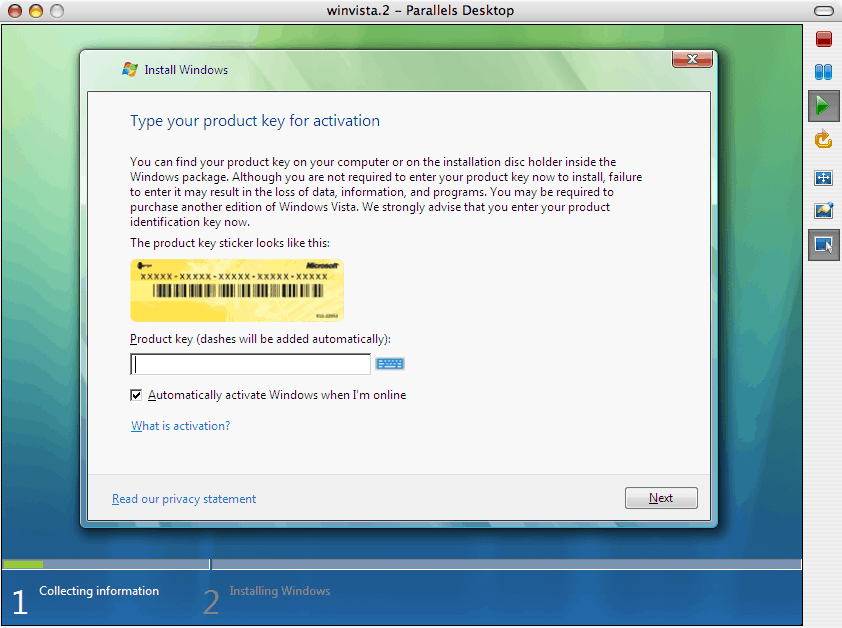
  6. Enter your Vista serial number. Or don’t – you can do this later.


    click to enlarge

  7. Accept the agreement and click Next


    click to enlarge

  8. You probably won’t have any choice – so select Custom


    click to enlarge

  9. Choose the Disk you’ll be installing Vista on and then click Next


    click to enlarge

  10. Go get a coffee.


    click to enlarge

  11. Eventually Vista restart itself. Just sit back and watch the fun.


    click to enlarge

  12. Still boring..


    click to enlarge

  13. Now’s a good time to go warm up that coffee..


    click to enlarge

  14. Almost done.


    click to enlarge

  15. Now choose a user name, password and picture/icon. Click Next when you’re done.


    click to enlarge

  16. Here you’ll choose a computer name. Sorry about the missing
    screenshot. Your computer name can be pretty much anything
    alpha-numeric and can include some ’special’ characters (like dashes).
    Click next to continue.

  17. Now you’ll need to choose how you want Vista to handle updates.
    Review your options and make the choice that’s appropriate for you.


    click to enlarge

  18. Select your Time zone, make sure the Time and Date are correctly set, and then click Next.


    click to enlarge

  19. You’re welcome. Click Start.


    click to enlarge

  20. This step (Windows performance check) can take a few minutes.


    click to enlarge

  21. Finally, enter the password that you set a few minutes ago.


    click to enlarge

  22. Almost there…


    click to enlarge

  23. Ta-da! It’s Vista!


    click to enlarge

  24. There’s a pretty good chance that you won’t be connected to the
    Internet. If you check the Windows Vista Device Manager, you’ll
    probably notice that your Ethernet card isn’t installed correctly.
    Don’t worry about it – Parallels Tools will fix your Ethernet card, end
    the double-cursor problem and more.


Installing Parallels Tools

  1. With Vista running (but not in full screen if you’ve been playing around a bit) use the ctrl-alt key combination to ‘escape’ from the virtual machine and return to OS X. From the Parallels menu, select VM and then Install Parallels Tools…

  2. Review and then click OK

  3. Back in Vista an AutoPlay window will appear. Click Run PTStart.exe

  4. Click Allow


    click to enlarge

  5. Wait, but don’t go too far –


    click to enlarge

  6. because you’ll have to choose Install this driver software anyway a number of times


    click to enlarge

  7. Again..


    click to enlarge

  8. and again.. and probably again


    click to enlarge

  9. Finally, restart Vista again by clicking Finish.
    When Vista boots back up again, you’ll notice that the mouse cursor is
    fixed (and you should be able to seamlessly move your cursor from Vista
    to OS X without having to do the ctrl-alt keyboard combo), your
    Ethernet card will be properly installed (which means you should be
    online), a new display driver will be installed allowing for more
    screen resolutions in Vista (though the fancy Aero parts of Vista won’t
    work, yet) and last but not least, you can share files between Vista
    and OS X (more on that later..).


    click to enlarge

Posted in Computers and Internet | Leave a comment

Hacking Skype: 25 Tips to Improve your Skype Experience

Hacking Skype: 25 Tips to Improve your Skype Experience

How versatile is your Skype? Ours can podcast, translate French, take conference calls from 15 people, and tutor calculus. Want to learn how to turn your Skype telephone into a multipurpose office machine? We’re going to tell you how.For millions of users, Skype is the VoIP solution of choice. If you’re just getting into this great telephone alternative, you are going to be surprised how much you can do with it. In this article we cover 25 tips, hacks, and extras to help you utilize Skype to its fullest potential.


Starting Simple: Built-In Skype Features you Didn’t Know About

Skype is such a rapidly emerging technology that a lot of brand new users aren’t even aware of all the built-in features that Skype offers standard, not to mention the add-ons and hacks that you can improve it with. In this section we cover some often overlooked standard features of Skype that can dramatically improve your experience.1    Call Forwarding

    Whether you’ve set your Skype account up on your home or work computer, the fact is, you are occasionally going to get important calls when you aren’t there. Thankfully, you can simply forward those calls to another Skype account or even a cell phone or land line. That way, even if your computer at work is shut down, as soon as a call comes in to your Skype account, the call will immediately ring on your cell phone, your home computer and your home phone line, meaning that no matter where you are you’ll be sure to get it.
    To forward a call click on the "Tools" menu and select "Options." From there set the forwarding number in the "Call Forwarding & Voicemail" section.

2    Filtering and Blocking Users

    Skype is a great tool for both business and pleasure, but if you don’t take preventative steps, it can also cause you some serious security problems. Vishing is a new VoIP targeted scam in which cyber-criminals use a VoIP client such as Skype to call people and attempt to trick them into revealing important financial details such as credit card numbers or online passwords. But you can limit these attacks by simply blocking unwanted callers.
    To block unknown or unwanted callers, simply click on "Tools" and select "Options." From there, select "Privacy" and choose the level of security that works best for you. When it comes to individual attacks, you can avoid repeat vishing calls by blocking the spammer by clicking on "Manage Blocked Users" in the "Options" dialog.

3    A DIY Home Security System

    Whether you want to keep an eye on your pet goldfish from work or just make sure no one has broken in the house while you are on vacation, Skype can double as an away from home monitoring system.
    Checking in is simple with Skype’s one and two way video calling. You’ll need two separate Skype accounts, a computer at home with a webcam, and access to the Internet. Using one account, setup the home version of Skype to auto-answer calls and automatically fire up the webcam. Then to check in, just use the second Skype account to call the first, and the webcam video will pop up.

4    Providing Customer Support

    Got a small business online? Want to offer some customer support without spending a fortune on telephony costs? Skype’s graphical click-to-call SkypeMe buttons are ideal for this. Create your SkypeMe button (free account needed) and embed the code in your website, weblog, template, email, or wherever you want it to appear. When someone views your web page (or email message), the button will indicate whether you are online and accepting Skye calls, busy, or offline. If you’re on the go and want to receive calls, just leave your Skype client running and set call forwarding (see above).

Plugins, Addons, and Extras

Think of the off-the-shelf version of Skype as a new car without any optional package. Sure, it will still get you to and from work, but it doesn’t have any of the bells and whistles that make your new toy exciting. Unlike car options, however, these Skype Plugins and Add-ons won’t cost you a fortune, and they’re easy to install to boot.5    Using Skype to Sell your Services

    You’ve got information that other people can use, and with the Bitwine Skype add-on you’ll be able to leverage that information into an income stream. Whether you’re a lawyer, a mechanic, or a talented collector, there are people willing to pay for the information you have, and using Bitwine makes selling that information easy. Through Bitwine, you set up your hourly rate, then customers approach you about the topic they would like to discuss, you set up a meeting time, and at the end of the meeting Bitwine tallies up the time and will even coordinate payment via PayPal through another add-on, Bitwine extra.

6    Recording Calls

    There are a lot of add-on options for recording Skype calls, including the free Audacity audio editor. But Audacity has to be triggered manually, and since you don’t always know beforehand when a call should be recorded, the fact that Audacity is manual is a serious limitation. By contrast, there are a number of Skype recorders that start up automatically. HotRecorder is arguably among the best. HotRecorder allows searchable Meta text to be added to each recording, and works with Google Talk and other IM clients. For aspiring Howard Sterns, there’s a selection of Emotisounds such as laughs, claps, etc., that can be inserted into the conversation for later podcasting.

7    Enhanced Voicemail

    If you use your Skype phone for more than just the occasional long-distance call, you should enhance your voicemail setup beyond the basic Skype standard. Pamela offers (automatic) call recording, an answering machine for voice and video, automated chat reply if you’re away, Skype VoiceMail management, and email forwarding of audio files. In addition, Pamela will let you setup a separate greeting or voicemail message for different users, so that your business and personal calls won’t hear the same message. And best of all, Pamela allows for remote control, meaning that if you forget to change one of the voicemail settings before you go on vacation, you can make the changes via any computer anywhere.

8    Keep Up With New Music

    If you constantly find yourself wondering why everyone else’s iPod seems to have better music than yours, maybe its time to start branching out and discovering new music. Last.fm, a Skype add-on provides you with an easy forum to share your own musical preferences and listen to what other people like. With this add-on, you can browse through other Skype and Last.fm user’s music collections and listen in. While you’re listening, information about the song and artist you’re listening to is displayed and you’re given the ability to find similar titles.

    Setup is really simple, you just need to download the Last.fm extra, sign up for a free account at Last.fm and there download the Last.fm software. For those of you that are Mac users, Last.fm will still work as a Skype add-on, the only difference is that you will need to download the iScrobbler extra to make Last.fm Mac compatible.

9    Universal Chat and Language Translation

    It’s a global world out there, so whether you’re conducting business or pleasure with Skype, you are likely communicating with people around the world and may occasionally encounter language barriers. Thankfully, by using the quick add-on Universal Chat Translator you can communicate with anyone no matter what language they speak. The software only produces text translations, so you may feel like you’re watching a foreign film with subtitles, but the fact that the Universal Translator can read text in 11 languages and understand spoken text in 50 means that you’ll at least be able to get your point across.

10    A Complete Small Business Collaboration Solution

    If you’re running a small business or working as part of a team on a single project, real-time collaboration is essential. There’s no better way to supplement your Skype conferencing than with a collaborative desktop provided by Skype add-on Unyte. Unyte lets you choose which applications or documents to share with the other people on your conference call. Then everyone can be looking at the same documents at the same time, and when changes are made they appear on everyone’s screen so that there is no confusion. Pricing depends on the number of people you want to bring in on the conference, but you can give two-person collaboration a try for free.

11    Combining Real-Time Document and Voice Collaboration

    If the setup hassles of Unyte are too much for you, a simpler solution that redefines easy-setup is TalkandWrite. TalkandWrite will give you video and voice conferencing as well as handle real-time collaborative document editing. That means, that not only will the changes you make be reflected on the other person’s screen, but you’ll also be able to see and talk with the other person about those changes as you make them. This easy Skype add-on can be a real time-saver for anyone who spends time working with a small team preparing for a project.

Mobility

With the advent first of cordless phones and then cell phones, every communication device is going mobile. So it doesn’t make sense that your most advanced communication tool, Skype, should keep you tethered to your computer. Here are a few Skype add-ons and extras to give you the freedom to get out from behind your desk.12    Bluetooth and Skype

    The first step to mobility is just cutting the cord that connects you to your computer when you’re using Skype. You can think of this step as the advent of the cordless phone for Skype, it will get you mobile, but only within certain limits. Most newer computers are already Bluetooth capable, so purchasing and synching up a Bluetooth wireless earpiece or headset is extremely simple. In fact, you can use a single Bluetooth earpiece to handle calls from both Skype and your cell phone, so you may not need to buy anything if you’re already using a Bluetooth earpiece with your mobile. The only downside to going Skype wireless via Bluetooth is that you are limited by Bluetooth as to how far from your computer you can be. But for those that are just looking for a way to cut the wire and have a little more mobility around the office, Bluetooth is the perfect solution.

13    Mobile Phone Skype Calling

    Imagine if you could use SkypeIn or SkypeOut from your cell phone: you could make and receive phone calls to people around the world with the convenience of your cell phone but the pricing of Skype. Thankfully, that day is already here, but a surprising number of Skype fans just don’t yet know about the capability. Ego has been offering their Skype based cell phone service for almost a year. It lets you see who is online, make and receive calls with your Skype contacts, and use Skype Instant Messaging.

    If the idea of carrying both a Skype phone and a regular cell phone doesn’t suit you, TalkPlus has hacked the Skype API to create a server that functions as a Skype client, demonstrating that integrating Skype calls and regular mobile calls will soon be a reality. In fact, in November 2006, TalkPlus demonstrated a successful mobile call to Skype test id echo123. Their hack was then made public, and could be installed on mobile phones to talk to the Skype server. Since then, the service has temporarily gone MIA, but expect that very soon full cell phone/ Skype integration will be a reality.

14    Skype on a Cell Phone…Indirectly

    While the ultimate goal is complete Skype/ mobile integration, for now you can get a lot of the functionality of a Skype mobile phone by routing your mobile through your home Skype setup. By using a Phone Diverter, which will allow your cell phone to communicate with your computer, you can enable Skype on your mobile phone indirectly.

    Essentially, you will be using your mobile phone to call your home computer, which will in turn ask you to enter a password, and then allow you to use your SkypeOut credits to call your Skype friends. While the system isn’t yet perfect, in part because you’ll be racking up both your cell phone and SkypeOut minutes at once, it is an effective way to be able to make Skype calls from your cell phone now.

15    Bringing Skype to your TV

    Imagine, you hear your Skype phone ring, but it’s the fourth quarter of the game, and who knows if the call is even important. You don’t want to get up, but it seems you have no choice. Thankfully, with mcePhone you won’t have to get up to find out who is calling ever again, as your incoming Skype calls will simply pop up on your TV screen.

    From your TV you’ll be able to see your own Skype-Status (online, offline, etc), the number of SkypeOut credits you have, which of your Skype friends are currently online, and whether you have any new voicemails. And when a new call comes in, a small window automatically pops up letting you know who the caller is, and it will even let you decide whether you want to accept, ignore, or reject the call all by remote control.

16    Having your Skype Announce Who is Calling

    Despite its simplicity, AudioID is easily one of the most useful Skype hacks for home users. AudioID will allow you to setup an individualized announcement for each caller that will play over your computer or home speaker system. So instead of hearing a generic computer ring from somewhere way back in the home office, you can hear a clear message from your computer, "Call from Kristy" which will let you decide whether you need to run back to take the call or whether it can wait until later.

Pure Silliness: Skype Hacks Designed to Entertain

Much of Skype’s appeal is the connectivity and productivity it brings to its users. But Skype can also just be a great way to have a whole lot of fun. These simple hacks will help you do just that.17    Voice Analysis Love Detector

    Whether you’re using a Skype based dating service or are just want to know if that secret crush feels the same way about you, the Love Detector is a fun Skype add-on that uses SENSE voice analysis technology to detect love and other emotions over your Skype calls. But before you rush out and purchase the full version, you can give this add-on a free trial run and start testing how people really feel about you.

18    Making Board Games Fun Again

    Need a break from work but need to stay in front of the computer so your boss doesn’t get suspicious? There are a whole host of classic board games that you can add-on to Skype for some fun diversion. With Backgammon, Bingo, Chess and Checkers, you can compete against your fellow Skype users using ‘old-school’ games with ‘new-school’ interfaces.

19    KishKish Lie Detector

    If you’re using your Skype phone to conduct business deals and you want to make sure the other party is being truthful, or you just want to prove once and for all that your boyfriend is a cheater, try KishKish the Skype Lie Detector add-on. KishKish detects the stress level of the person you are talking with over Skype, and it uses that information to detect when they are lying.

20    Creating a Lip-Snyc-ing Avatar to Hide Behind

    Video calls can be great for connecting with people on a more personal level. But sometimes, whether because we don’t know the caller well or it just hasn’t been a good morning, we don’t want to be seen. Instead of feeling embarrassed in front of the camera, CrazyTalk allows you to create your own Skype video avatar and have him/ her lip-sync anything you say. This fun add-on is surprisingly simple to setup and use, and will allow you create your own custom avatar from any digital photo. Once set up, it takes just a click to have the avatar pop up, cover the Skype video screen and begin lip-sync-ing.

21    Disguising your Voice

    There’s nothing more entertaining than changing your voice to mess with your friends. Whether you want to impersonate their boss or their girlfriend, DoNaut has got you covered.

    This easy to install Skype add-on will allow you to adjust the tone and quality of your voice throughout the call. In addition, you can use DoNaut to pipe in some background music to your Skype calls off your favorite music player such as iTunes, or Windows Media Player.

22    "Can I Have Your Number?" … "Umm, No."

    Whether from a bad blind date, or a sales person that just won’t take no for an answer, we’ve all been in a situation where we didn’t want to give the person our phone number or Skype information, but it seemed unavoidable.

    Thankfully, the folks that compiled the original NotMyNumber Directory have given Skype users the ability to provide people with a fake number as well. This simple Skype add-on will give you access to local numbers in every major city that are guaranteed to be inactive. That way, when someone you don’t want to talk to asks you for your Skype number, you can very casually access the Skype NotMyNumber Tool and offer them a completely fake number.

Advanced Hacks

If you’re tech savvy and really want to push your Skype setup to the limit, this list of advanced hacks can help you create functionalities that are sure to improve your experience and wow your friends. But be forewarned, even though a lot of these hacks will be simple to advanced tweakers, if you’re new to Skype you may find some of these hacks are over your head. 23    Multiple Logins

    If Skype has become your family’s communication device of choice, then no doubt you have experienced the problem of having multiple members of your family trying to use your home Skype account at the same time. For a quick fix to this problem, just setup setup multiple logins, so that everyone in the family can use their Skype ID whenever they want. So far this hack is only available for Windows XP users, but keep an eye out for a hack compatible with your OS in the near future.

24    Wake-up Call

    If you’re a regular business traveler, finding yourself without a wake-up call can be a big problem. Thankfully, by following this hack tutorial you can use the "Scheduled Task" feature in Windows XP to set a time and have Skype call the hotel phone to wake you up.

25    Design your own Hack

    Don’t see a hack here that interests you? Or maybe you need custom functionality and can’t wait for someone to create it. Skype has open developer API, so you can write your own plugins which can be created in HTML or Java, or as an EXE or DLL. If you’re looking for a community to help you with some of the programming hurdles, the Skype Developer Zone blog will even keep your questions private so that no one steals your new idea before you get it finished. And when your application is complete, the site also offers a Publishing Studio Publication Studio to manage your published component.

Posted in Computers and Internet | Leave a comment

There are also more fanciful ways to induce a visceral feel for $1 trillion.


Feb. 4, 2007 — The price tag for the Iraq War is now estimated at $700 billion in direct costs and perhaps twice that much when indirect expenditures are included. Cost estimates vary — Nobel Prize-winning economist Joseph Stiglitz puts the total cost at more than $2 trillion — but let’s be conservative and say it’s only $1 trillion (in today’s dollars).

As a number of other commentators have recently written, this number — a 1 followed by 12 zeroes — can be put into perspective in various ways. Given how large the war looms, it doesn’t hurt to repeat this simple exercise with other examples and in other ways.

Different Monetary Units

There are many comparisons that might be made, and devising new governmental monetary units is one way to make them. Consider, for example, that the value of one EPA, the annual budget of the Environmental Protection Agency, is about $7.5 billion. The cost of the Iraq War is thus more than a century’s worth of EPA spending (in today’s dollars), almost 130 EPAs, only a small handful of which would probably have been sufficient to clean up Superfund sites around the country.

Or note that the annual budget for the Department of Education is about $55 billion, which puts the price tag for Iraq at about 18 EDs. Just a few of these EDs would certainly have put muscle into the slogan "No child left behind."

And since the annual budgets of the National Science Foundation and the National Cancer Institute are $6 billion and $5 billion, respectively, the $1 trillion war cost is equivalent to 170 NSFs and 200 NCIs. No doubt a couple of those NSFs could have been used to develop cheap hybrid cars and alternative fuels. Scientific progress is by its nature unpredictable, but some extra NCIs might also have lead to breakthroughs in cancer treatment.

The cost of the war can also be expressed as approximately 28 HS’s, where HS, the annual budget for the Department of Homeland Security, is about $35 billion. Really securing the ports and chemical plants would have only eaten up a few of these HS’s. A few more could have been usefully spent in Afghanistan.

One last and rather tiny governmental monetary unit functions almost as spare change and has the ungainly acronym NHTSA. It stands for the annual budget of the National Highway Transportation Safety Administration, which is approximately $670 million, or about two-thirds of $1 billion. The Iraq War has cost about 1,500 NHTSA’s, several of which could probably have reduced the more than 40,000 Americans killed annually on our roads.

Of course, using these nonstandard monetary units isn’t quite appropriate when trying to come to terms with the more than 3,000 U.S. soldiers killed, the 20,000 wounded, and the number of Iraqis killed and wounded. The latter number is staggering, whether you subscribe to the figures put out by Iraq Body Count or those published in Lancet or to other even higher estimates.

Unlike death and serious injury, the medical costs for returning veterans, their decreased productivity, and the depreciation of military equipment can be quantified and constitute yet another huge indirect cost of the war.

Other Measures

Another way to get at the $1 trillion cost of the Iraq War is to note that the Treasury could have used the money to mail a check for more than $3,000 to every man, woman and child in the United States. The latter alternative would have an added benefit: Uniformly distributed and spent in this country, the money would have provided an economic stimulus that the war expenditures have not.

Alternatively, if the money was spent in an even more ecumenical way and a global mailing list was available, the Treasury could have sent a check for more than $150 to every human being on earth. The lives of millions of children, who die from nothing more serious than measles, tetanus, respiratory infections and diarrhea, could be saved, since these illnesses can be prevented by $2 vaccines, $1 worth of antibiotics, or a 10-cent dose of oral rehydration salts as well as the main but still very far from prohibitive cost of people to administer the programs.

There are also more fanciful ways to induce a visceral feel for $1 trillion.

For example, it would take almost three decades to spend a trillion dollars at $1,000 per second, and if spending at this rate occurred only during business hours, more than 120 years would be required to dispense the sum.

Another time analogy is illuminating. A million seconds takes approximately 11.5 days to tick by, whereas a billion seconds requires about 32 years. Fully 32,000 years need to pass before a trillion seconds elapse.

Of course, some might argue that the $1 trillion expenditure in Iraq has made us both more secure domestically and more respected internationally than ever before. Perhaps as many as a dozen people agree with Cheney’s recent hallucinatory comment that "we’ve had enormous successes, and we will continue to have enormous successes" in Iraq."

At times, it seems that the nightmare and expense of these enormous successes will continue for the next trillion seconds.

John Allen Paulos, a professor of mathematics at Temple University, has written such best-sellers as "Innumeracy" and "A Mathematician Plays the Stock Market." His "Who’s Counting?" column on ABCNEWS.com appears the first weekend of every month.

Posted in News and politics | Leave a comment

MOZILLA FIREFOX CHEAT SHEET


MOZILLA FIREFOX CHEAT SHEET

BASIC

Home:
http://www.mozilla.com/firefox/
Extensions & Themes:
https://addons.mozilla.org/
Support Forum:
http://forums.mozillazine.org/
GENERAL KEYBOARD SHORTCUTS

Add Bookmarks

Ctrl + D

Bookmarks

Ctrl + B

DOM Inspector

Ctrl + Shift + I

Downloads

Ctrl + J

Full Screen View

F11

Help

F1

History

Ctrl + H

Page Source

Ctrl + U

Print

Ctrl + P

Refresh Page

F5

Refresh Page & Cache

Ctrl + F5

Save Page As

Ctrl + S
NAVIGATION KEYBOARD SHORTCUTS

Back

Alt + Left Arrow

Down One Line

Down

Down One Page

PageDown

File Open

Ctrl + O

Forward

Alt + Right Arrow

Frame Next

F6

Frame Previous

Shift + F6

Home Page

Alt + Home

Jump to Address Bar

Ctrl + L

Jump to Search Bar

Ctrl + K

Page Bottom

End

Page Top

Home

Stop

Esc

Tab Close

Ctrl + W

Tab New

Ctrl + T

Tab Next

Ctrl + Tab

Tab Previous

Ctrl + Shift + Tab

Tab Select

Ctrl + [1 – 9]

Up One Line

Up

Up One Page

PageUp

Window Close

Alt + F4

Window New

Ctrl + N
TEXT KEYBOARD SHORTCUTS

Copy

Ctrl + C

Cut

Ctrl + X

Delete

Del

Text Size Decrease

Ctrl + –

Text Size Increase

Ctrl + +

Text Size Default

Ctrl + 0

Undo

Ctrl + Z
SEARCH KEYBOARD SHORTCUTS

Find Again

F3

Find as You Type Link

Find as You Type Text

/

Find in This Page

Ctrl + F

Find Previous

Shift + F3
MOUSE SHORTCUTS

Back

Shift + Scroll Down

Forward

Shift + Scroll Up

Open Link in Background Tab

Ctrl + Left Click or Middle Click

Open Link in Foreground Tab

Ctrl + Shift + Left Click

Open Link in New Window

Shift + Left Click

Scroll Line by Line

Alt + Scroll

Tab Close

Middle Click on Tab

Tab New

Double Click on Tab Bar

Text Size Decrease

Ctrl + Scroll UP

Text Size Increase

Ctrl + Scroll Down
LOCATIONS

Cached Elements

C:\Documents and Settings\[username]\Local Settings\Application Data\Mozilla\Firefox\Profiles\[profilename]\Cache\

Profile Manager

Close Firefox. From the "Start" menu, select "Run", type "firefox.exe -p"

User Profile Folder

C:\Documents and Settings\[username]\Application Data\Mozilla\Firefox\Profiles\xxxxxxxx.default\

Advanced Configuration

Address Bar: about:config

Cache Info

Address Bar: about:cache

Plugin Info

Address Bar: about:plugins
TIPS/TRICKS

Block Popup Windows

Tools -> Options -> Web Features

Customize Toolbars

Right click on a toolbar and chose customize toolbar. To add icons drag and drop them on the toolbar. To subtract icons drag them from the toolbar to the "Customize Toolbar" window.

Desktop Shortcut to Current Page

Drag the icon in the address bar to the desktop

Make Firefox Default Browser

Tools -> Options -> General -> Set Firefox As Default Browser

Manage Cache, Cookies, History and Passwords

Tools -> Options -> Privacy

Set Home Page

Tools -> Options -> General -> Home Page

Tabbed Browsing Options

Tools -> Options -> Advanced -> Tabbed Browsing
For use with Firefox running on a Windows machine. OS X users should use Cmd instead of Ctrl and Option instead of Alt. Based on the work of David Tenser. Last Updated: 06.21.06. PDF Version Here.
Posted in Computers and Internet | Leave a comment

Web Economy Bullshit Generator

 
This is cool…….
 
Posted in Techie Hobbies | Leave a comment

How to Feel Like Eating Breakfast First Thing in the Morning

How to Feel Like Eating Breakfast First Thing in the Morning

Everyone tells us that breakfast is the most important meal of the day and that it should be a substantial meal. Yet, some people awaken not feeling hungry and have no desire to wolf down bowls of stodgy cereal and plates of dry toast. For such people, breakfast is more easily skipped until they feel their stomach has "woken up" later in the day. Whatever your reason, the breakfast supporters do have a point – breakfast fuels us for the day. Read on for some tips for the less-than-keen breakfast folk.

Steps

  1. Get enough sleep. A lack of sleep or a bad night’s sleep can make us feel nauseated and bloated. This will stave off feelings of hunger until later in the morning when tiredness begins to be mistaken for hunger. You are more likely to eat candy bars and fatty baked goods later in the day to quell the queasy stomach if this is why you skipped breakfast.
  2. Map out a variety of choices for breakfast. Some of us dislike the same breakfast food on our plate every morning. If the thought of cornflakes, pop tarts or toast has you reaching for the car keys with an empty stomach, it’s time to vary your choices. Check wikiHow on breakfast for lots of suggestions. Consider the following possibilities:
    • Fruits – sliced into your cereal, tropical platter, smoothies, etc
    • Cereals – oatmeal, homemade granola or berry granola
    • Breads – scones, crumpets, bagels, French toast waffles, homemade muffins
    • Spreads – exotic jams and "spreads" such as marmite
    • Eggs – the manner of preparing them is endless; add sauces such as salsa, soy sauce, and Tabasco for variety
    • Beans – baked beans, beans and rice, refried beans in a breakfast burrito, etc.
    • Meats – bacon and eggs, ham and eggs, sausage, chorizo, smoked fish, etc.
    • Drinks – smoothies (fruit/milk/soy), freshly squeezed juice, blended drinks, vegetable juices
    • Ethnic specialities such as breakfast tacos or Arroz Con Leche
  3. Fruit & granola

    Vary the advice on substantial breakfasts. There is a saying: "Eat like a king for breakfast, a queen for lunch and a pauper for dinner." This makes sense if you are hauling hay or tilling crops with a hoe all day. It makes less sense if you are stumbling off to a desk and making minimal moves in front of your computer. If you have a more sedentary job, you are more likely to benefit from "grazing" – eating smaller amounts more frequently during the day. This might just make breakfast a palatable option for you as you will only need to consider eating half an apple or a cupful of strawberries or one piece of toast etc. to start out your day. As the day progresses, nibble on healthy portions here and there and have your larger meal later in the day.

  4. Take care with the main meal. For many workers, dinner often ends up being the main meal. This could be impacting on your breakfast desire. If this meal is very important in your household (e.g., it is the only time the family sits together) or you simply enjoy making this the largest meal, make sure that you finish it before 7 or 8 pm at the latest. That way the food will digest before you go to bed and your body can then begin to work its way towards morning hunger. If you need late night snacks, try small portions such as cheese cubes, apple slices, a banana or hot drinks.
  5. Check your lunch and dinner calories. If you are having both large lunches (especially in a business environment) and a large evening meal, you are probably removing your morning’s hunger as the food is still being digested. Try eating a larger breakfast combined with making healthy choices both eating out and at home; while this will probably be hard at first, it might help to lessen the amounts you consume later in the day, thereby making it easier to eat more at breakfast. It will also make weight maintenance easier.
  6. Exercise before breakfast. This might help you to work up an appetite. At the very least, drink a smoothie or a multi-fruit juice to give your body some vitamins and a small amount of fiber.
  7. Allow enough time for breakfast. If you are feeling stressed or in a rush in the morning you may be less inclined to spend the time on a good breakfast. Try to prioritize sitting down for a relaxed meal (this can be true for all meals of the day.)
  8. Drink juice at the very least. If you really feel too nauseated or averse to chewing, down a glass of juice (such as orange juice) to give your body some energy. Try it before you take a shower, get dressed etc.; it may increase your desire for eating something afterwards by waking up your stomach after a long fast. Avoid drinks with fat in them (such as milk) which takes longer to digest, and may give you a feeling of fullness/satisfaction, leading to skipping breakfast altogether. If your stomach is sensitive to the acid in, say orange juice or apple juice, try grape juice.
  9. Don’t snack at night. Some people, especially those who tend toward bedtime heartburn, stop eating a few hours before they retire. This makes them hungry enough to eat breakfast, and may also help them cut back on "empty" calories.

Tips

  • If you are skipping breakfast by choice because you think it is helping you to keep slim, you may be denying your body the energy it needs. A sensible, regular intake of food helps you to maintain an ideal weight because the body burns it for energy and doesn’t feel the need to "hoard" food; denying yourself this boost first thing in the morning could actually lead to a reversal in your body’s metabolism and make it sluggish and unable to burn the remaining food that you consume as effectively. Eat small portions of nutrient-rich food to improve your mood, outlook and metabolism.
  • If motivation or being a "night owl" rather than a "morning lark" are causing you to avoid eating breakfast, ask a member of the family or a friend to make you breakfast for a week, on the understanding that you need this help to get into a new routine and that it is a temporary arrangement to turn things around. Do something in return for them, such as making dinner that week or running errands for them. Maybe you’ll even discover you like this arrangement and keep it up!
  • Stay at a Bed & Breakfast renowned for its great breakfast spreads. Not only will this whet your appetite but it’ll inspire you. Throw in a spa treatment and hopefully the new, relaxed you will go home brimful of desire to make a decent breakfast!
  • If you have intolerances to cow milk, a milk alternative like soymilk might be a better option for you. Soy Milk, Rice Milk, Almond Milk, Hazelnut Milk and Oat Milk are all viable alternatives that are usually fortified with vitamins.
  • If you’re a smoker or heavy coffee drinker, take a shower first. Waking up to something other than chemicals which actually impair an appetite will help you gain control – adding some grain and fruit to your caffeine and nicotine breakfast.

Warnings

  • If you are always very weak in the mornings or always wake up with a headache or nausea, then you should see your doctor to discount other health problems.
  • If your posture is bad, you may be having morning neck pain and headaches, which may put you off your food. See a doctor for recommendation to a physiotherapist.
  • Avoid using sugary and fat-filled snacks as energy boosters. They appear to work as they give an immediate buzz but this will fade quickly, leaving you irritable and seeking more. Replace with complex carbohydrates or protein foods that will take time to break down and continue to feed your body the energy it requires. This will keep your weight even also.
  • Children should never go without breakfast. It causes poor performance at school, creates a lasting bad habit and affects their learning chances in all areas of life. If you suspect a child at school or on your street is going without breakfast, offer to provide one or speak with the child’s parents to see if they need some assistance. Be careful as to how you approach them because they may feel that their dignity is being insulted, but at the end of the day, a child’s health is more important than an adult’s misplaced sense of pride. Often the best way you can help is to donate money, food or help to your local school to provide breakfasts for children.
Posted in Health and wellness | Leave a comment

Whip your MP3 library into shape, Part I – Level the volume

Whip your MP3 library into shape, Part I – Level the volume


If you’ve been playing the MP3 game for more than a few years, you’ve probably amassed a library that’s both sizable and eclectic. It’s probably a bit messy, too, with inconsistent volume levels, missing or incorrect album art and messed-up metadata.

Fortunately, these problems aren’t difficult to correct. With a little extra time and the right software tools, you can whip your MP3 library into shape. Let’s start with volume leveling. Read on to discover the first secret of a perfect MP3 library.

Put song volume on the level

Because your MP3s probably came from a variety of sources–CDs, friends, download services, peer-to-peer software and the like–they probably have woefully inconsistent volume levels. This song’s too loud, the next one’s too soft, and very few are juuuuust right. If you live for shuffle play, you know exasperating this can be: You end up reaching for the volume controls with every new song that plays.

There are myriad solutions to this problem. iTunes 7, for instance, can automatically adjust volume level–but only when you play your tunes in iTunes. Some portable players, meanwhile, have volume-leveling capabilities built in, like the Creative Zen Vision:M. But these options don’t attack the root of the problem, which is that your multi-sourced MP3s have inconsistent levels.

Enter MP3Gain, widely regarded as one of the best tools for "normalizing" MP3s. The software analyzes your tracks, then modifies them so they play at a consistent volume. There are other programs that do likewise (notably MediaMonkey, which we’ll be using in Part II of this feature), but I’m partial to MP3Gain. After you download and install the program, meet me at the next paragraph.

Click Add Folder, then select the folder containing your MP3s. The next step is to choose a method of volume analysis: album or track. When you analyze by album, MP3Gain focuses on all the songs in any given album, relative to each other. When you analyze by track, it’s like your entire library is one big album: MP3Gain calculates the volume level for each individual song. I recommend the latter option, as our goal here is to achieve consistent levels for your entire library.

By default, MP3Gain strives for a volume level of 89dB, but you can change this value if you like in the Target "Normal" Volume box provided. After that, click the Track Analysis button, then be prepared to wait while the program analyzes your library.

What’s happening under the hood

It’s worth noting at this point that MP3Gain makes no changes to the encoding of the MP3 files themselves, meaning song quality won’t be affected. What’s more, the program stores analysis and undo information inside each file’s metadata, so you can reverse the process or make additional changes later on. In other words, the volume adjustments are only semi-permanent.

Once MP3Gain completes the analysis, you can review the results (see the included help file for detailed descriptions of what everything means) or just go ahead and start the leveling procedure by clicking Track Gain. (Again, you have the option of adjusting the volume by album instead, but for our purposes, stick with track.) This will take even longer than the analysis, so be prepared to wait awhile.

When you’re done, fire up Windows Media Player, MediaMonkey or whatever player you use and test your tracks. They may not have perfectly consistent volume, but they should be much better. You can always go back to MP3Gain and raise or lower the Target "Normal" Volume a few decibels if your tracks prove to be too soft or too loud.

A few final notes: You’ll need to re-sync your portable player so it has the volume-leveled MP3s; you’ll need to run MP3Gain on any new tracks you add to your library; and you’ll need to tune in next week to learn how to fix and add album art!

Posted in Computers and Internet | Leave a comment

Top 10 Magic Trick Tutorial Videos

Top 10 Magic Trick Tutorial Videos

For years we have all known of sites such as http://www.penguinmagic.com and all such things similar. THEY ALL MAKE YOU PAY TO LEARN MAGIC TRICKS!

THIS IS GOING TO SAVE YOU HUNDREDS ON PURCHASING THOSE VIDEOS! It will also help you impress the ladies.

Today I went to the liberty of scouring the internet to track down the top 10 video magic tutorials that I could find. Many of these are simply amazing, others are simple yet stunning. I hope you enjoy.

If you disagree with any tricks posted please contact me here.

1. The snap card. This tutorial demonstrates how to make a card selected by the audience appear on your hand instantly. Love this one.


2. The revolver. Performed and taught by a kid, but who cares? This trick makes each card in the deck turn over with a flick of the cards. Simply AMAZING.


3. Coin into Can. Using this technique, the audience receives the illusion that a coin has instantly been forced into and unopened can.

4. The Coin Matrix – Make coins transfer beneath cards. Simple, yet amazing.

5. The Drop Change – Throw a card onto a deck and it instantly changes into a different card. Great trick for a large audience.

6. Pen through a dollar coin – With a simple bit of modification you can perform this.


7. Spin Change – A card instantly changes to a different card while being spun around.

8. Glass through table – Amazingly simple yet effective trick where you force a glass through the table.


9. How to tear a phone book in half – Not so much magic, just damn cool.

10. Self tying shoe lace – Simple modification, amazing effect.

I hope you enjoy performing these tricks :).

Posted in Hobbies | Leave a comment

Ten Tips for Effective Meetings

Ten Tips for Effective Meetings

Here are ten things that you can do to hold more effective meetings.

1) Avoid meetings. Test the importance of a meeting by asking, "What happens without it?" If your answer is, "Nothing," then don’t call the meeting.

2) Prepare goals. These are the results you want to obtain by the end of the meeting. Write out your goals before the meetings. They should be so clear, complete, and specific that someone else could use them to lead your meeting. Also, make sure they can be achieved with available people, resources, and time. Specific goals help everyone make efficient toward relevant results.

3) Challenge each goal. Ask, "Is there another way to achieve this?" For example, if you want to distribute information, you may find it more efficient to phone, FAX, mail, e-mail, or visit. Realize that a meeting is a team activity. Save tasks that require a team effort for your meetings.

4) Prepare an agenda. Everyone knows an agenda leads to an effective meeting. Yet, many people "save time" by neglecting to prepare an agenda. A meeting without an agenda is like a journey without a map. It is guaranteed to take longer and produce fewer results. Note, without an agenda, you risk becoming someone else’s helper (see tip #6 below).

5) Inform others. Send the agenda before the meeting. That helps others prepare to work with you in the meeting. Unprepared participants waste your time by preparing for the meeting during the meeting.

6) Assume control. If you find yourself in a meeting without an agenda walk out. If you must stay, prepare an agenda in the meeting. Collect a list of issues, identify the most important, and work on that. When you finish, if time remains, select the next most important issue. Note: you can use a meeting without an agenda to recruit help for your projects.

7) Focus on the issue. Avoid stories, jokes, and unrelated issues. Although entertaining, these waste time, distract focus, and mislead others. Save the fun for social occasions where it will be appreciated.

8) Be selective. Invite only those who can contribute to achieving your goals for the meeting. Crowds of observers and supporters bog down progress in a meeting.

9) Budget time. No one would spend $1000 on a 10¢ pencil, but they often spend 40 employee hours on trivia. Budget time in proportion to the value of the issue. For example, you could say, "I want a decision on this in 10 minutes. That means we’ll evaluate it for the next 9 minutes, followed by a vote."

10) Use structured activities in your meetings. These process tools keep you in control while you ensure equitable participation and systematic progress toward results.

Certified professional facilitator and author Steve Kaye helps groups of people hold effective meetings. His innovative workshops have informed and inspired people nationwide. His facilitation produces results that people will support. And his books show how to hold effective meetings.

Posted in Social | Leave a comment